Login Screen
The login screen configures the connection to a FalkorDB server and authenticates the user.
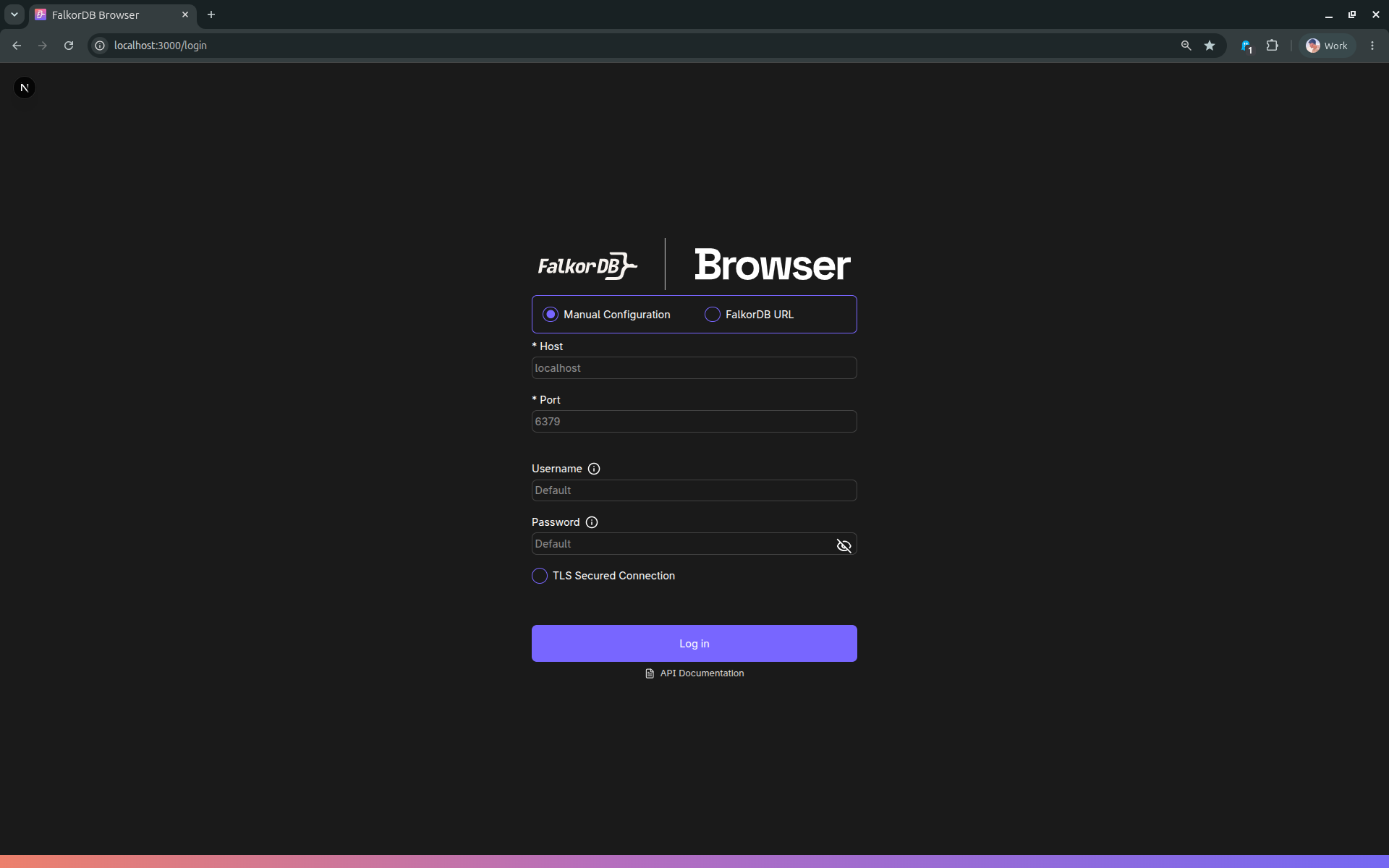
Login modes
The UI supports two ways to provide connection details:
1) Manual configuration
Use this when you want to explicitly set fields:
- Host (default placeholder:
localhost) - Port (default placeholder:
6379) - Username (optional)
- Password (optional)
- TLS toggle
- CA certificate upload (optional; used when TLS is enabled)
Notes:
- When using a local FalkorDB instance with default credentials, username/password can typically be left blank (the UI hints this).
- Disabling TLS clears the uploaded certificate.
2) FalkorDB URL
Use this when you already have a single URL to connect with.
Expected format:
falkor[s]://[[username][:password]@][host][:port][/db-number]- The UI also supports
redis://andrediss://.
Examples:
falkor://Default:Default@localhost:6379falkors://user:pass@my-host:6379
If the URL format is invalid, the form shows a validation error before attempting login.
What happens on successful login
On success, the browser navigates to the Graphs workspace (/graph).
Troubleshooting
- If login fails, you’ll see an “Invalid credentials” error.
- If you enabled TLS, make sure the server actually supports TLS and (if needed) upload the correct CA.
Frequently Asked Questions 4
What URL formats can I use to connect?
You can use falkor://, falkors://, redis://, or rediss:// URLs. The format is falkor[s]://[[username][:password]@][host][:port][/db-number].
Do I need a username and password for local development?
No. When using a local FalkorDB instance with default credentials, username and password can typically be left blank.
What happens if I enable TLS but my server does not support it?
The connection will fail. Make sure your FalkorDB server actually supports TLS and upload the correct CA certificate if required.
What is the default port for FalkorDB?
The default port is 6379. The login form uses this as a placeholder value.