FalkorDB Cloud supports in-tier size changes on a running instance. Changing the deployment type or moving to a different tier is not supported in place — use the import from another instance method instead.

In-tier upgrades

Startup, Pro, and Enterprise instances support changing the database size from the instance page.
  1. Open Deployments > Instances and select the instance you want to resize. It must be Running.
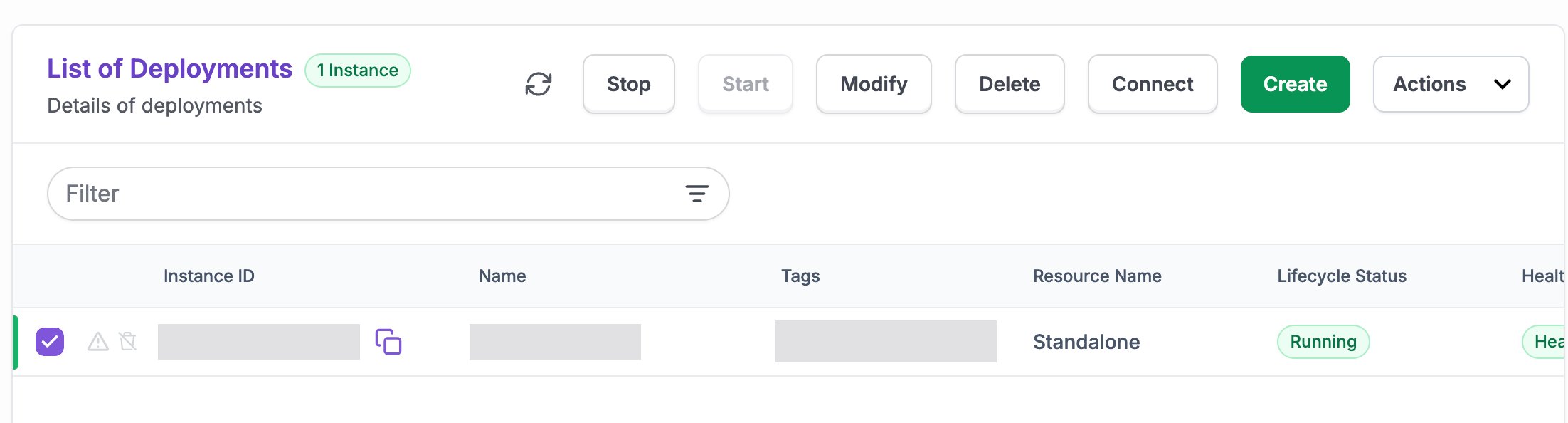
  2. Select Modify in the toolbar, or in the instance’s actions menu.
  3. Choose the new size and confirm.
The same form also lets you change the instance’s Name, Description, and FalkorDB Password. TLS, the FalkorDB user, persistence, and the FalkorDB tuning options are set when the instance is created and can’t be changed.
The Instances list with a running instance selected and the Modify button enabled
Changing the size may restart the instance. Plan the change for a time that tolerates a brief interruption, or use a Replication / Cluster deployment to minimize impact.

What can’t be changed in place

Changing deployment type or tier

To change the deployment type or move to a different tier:
  1. Create a new instance with the desired deployment type and tier.
  2. Open the new instance’s Import/Export RDB tab and select Import RDB.
  3. Choose Instance as the source and select your existing instance.
  4. Once the import completes and you’ve verified the new instance, update your application to point at it and decommission the old instance.
See Export and Import for details on the import from another instance method.

Getting Support

Questions about upgrading an instance? Email support@falkordb.com. See the Support page for what to include in your request.