

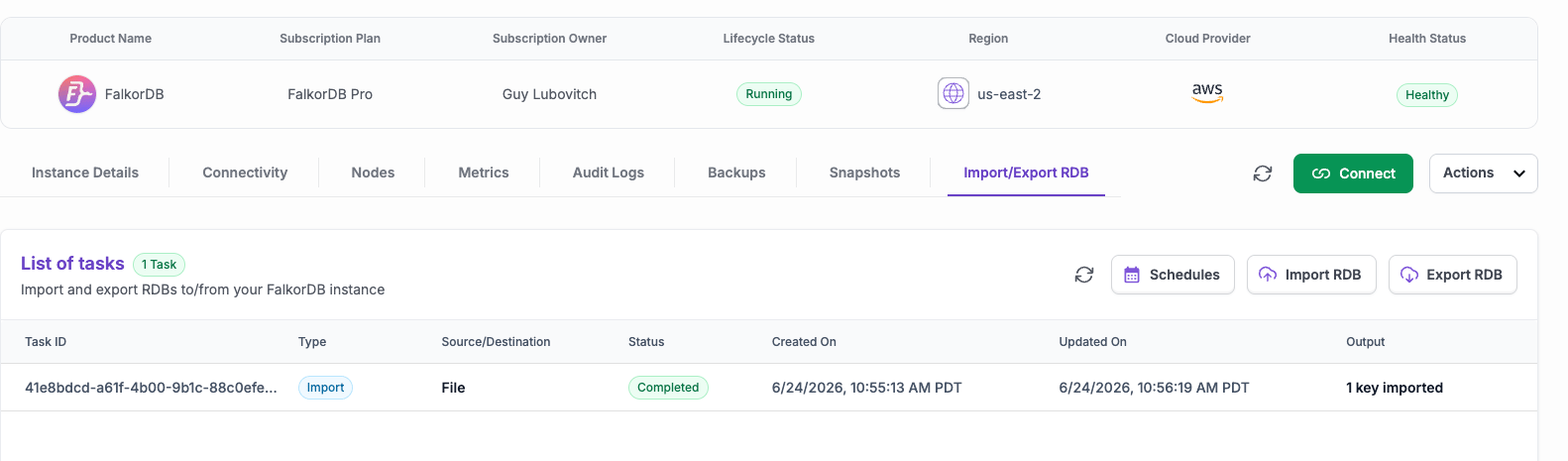
Before you begin
- The instance must be in the Running state.
- Your access depends on your subscription role. Export needs the root, editor, or reader role. Import needs the root or editor role.
- One export or import task runs at a time per instance. A new request while another task is in progress is rejected.
- When you use your own cloud storage, the access credentials are used only to reach your bucket for that task. They are not stored on the task record.
Export
An export writes a copy of your instance data to a destination you choose.- Open the Import/Export RDB tab on your instance.
- Select Export RDB.
- Choose a destination and fill in the details.
- Select Export.
Temporary link
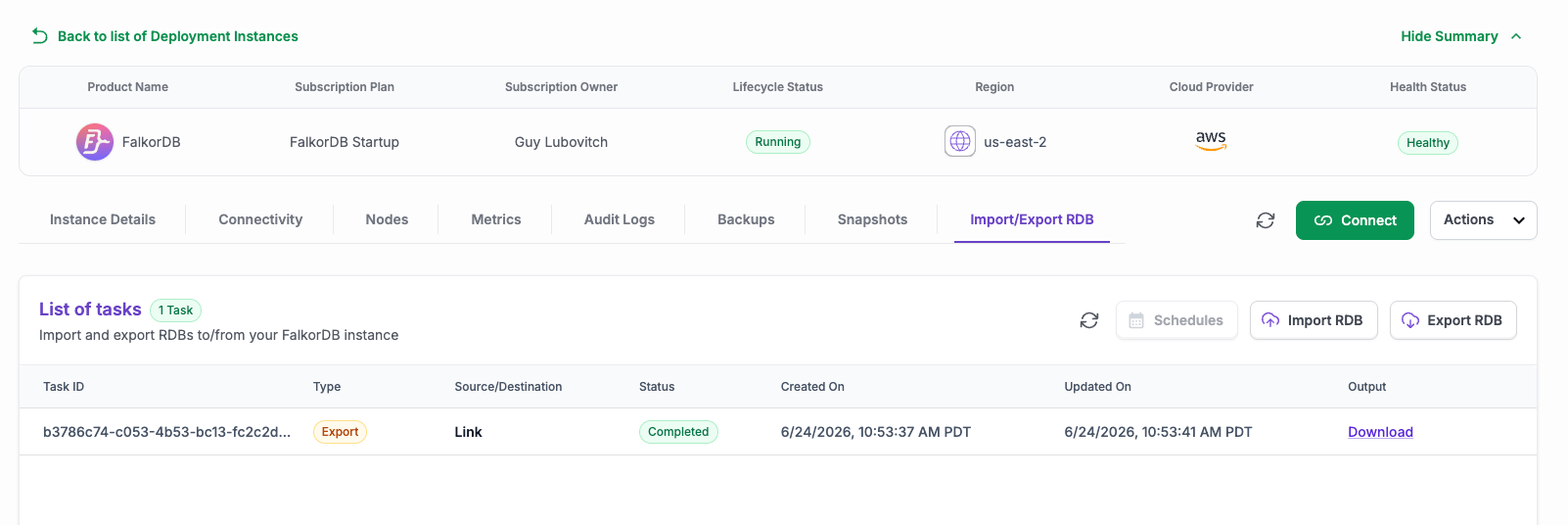
FalkorDB writes the export to managed storage and generates a download link. The link is valid for one hour.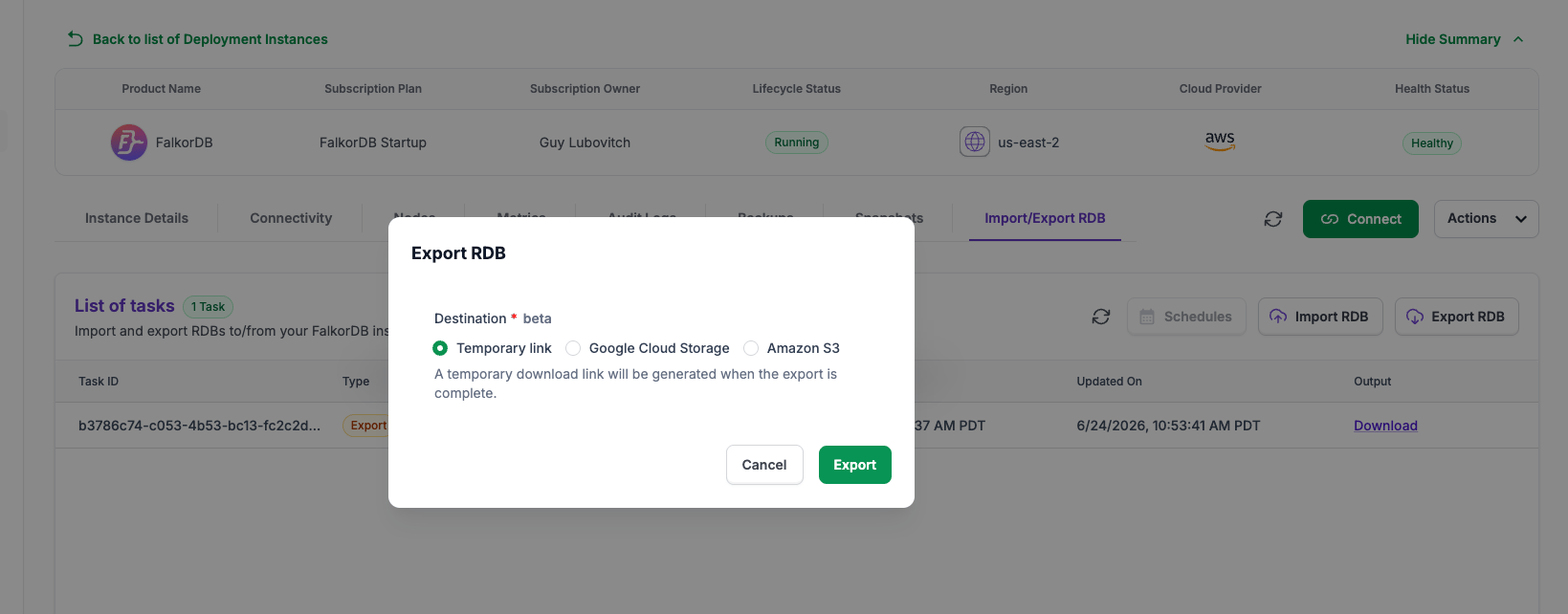
Google Cloud Storage
FalkorDB writes the export to your own Google Cloud Storage bucket. Provide the bucket name and a GCP service account key with permission to create objects in that bucket.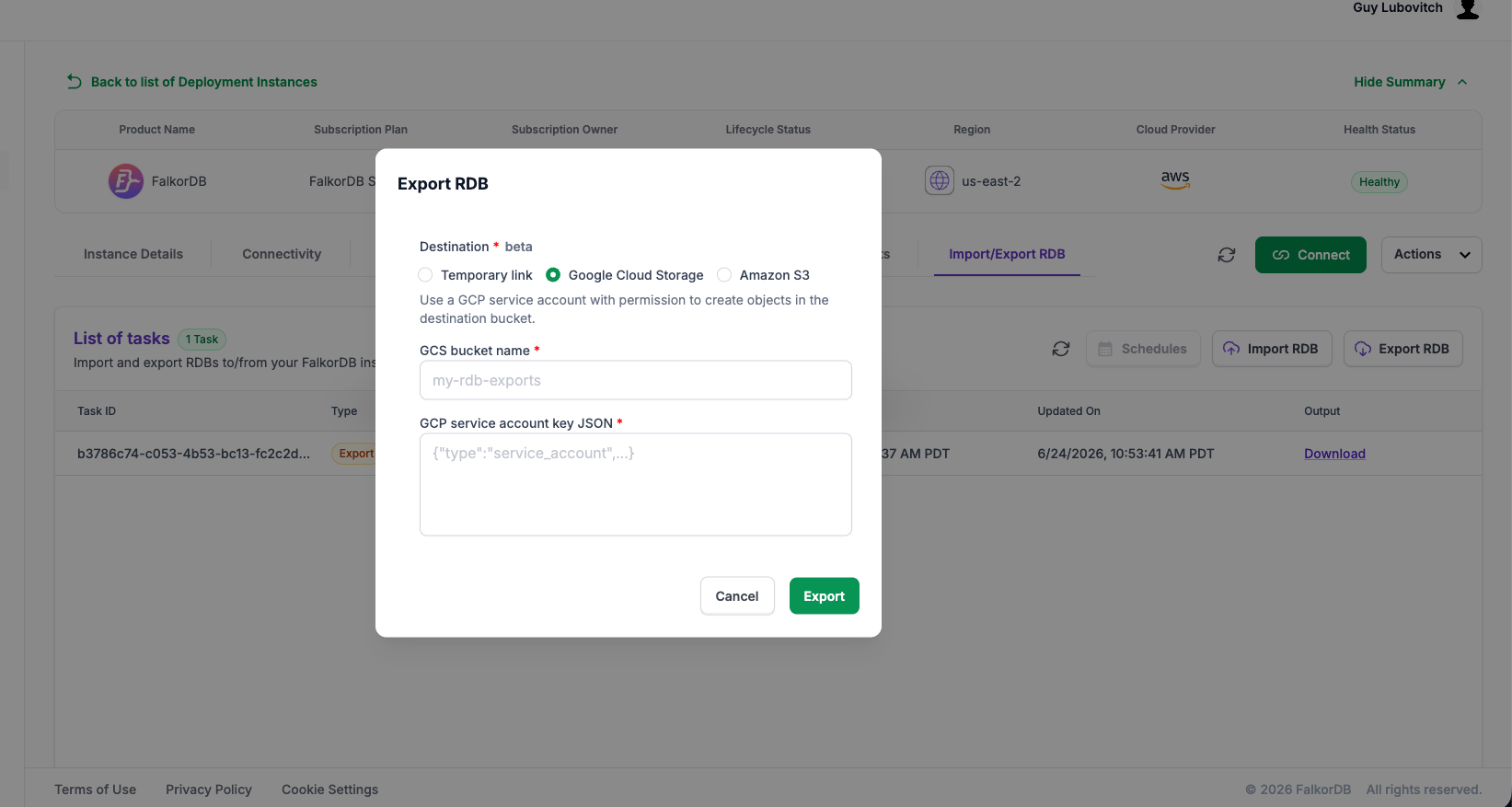
Amazon S3
FalkorDB writes the export to your own Amazon S3 bucket. Provide the bucket name, region, and AWS access credentials with permission to create objects in that bucket. A session token is optional.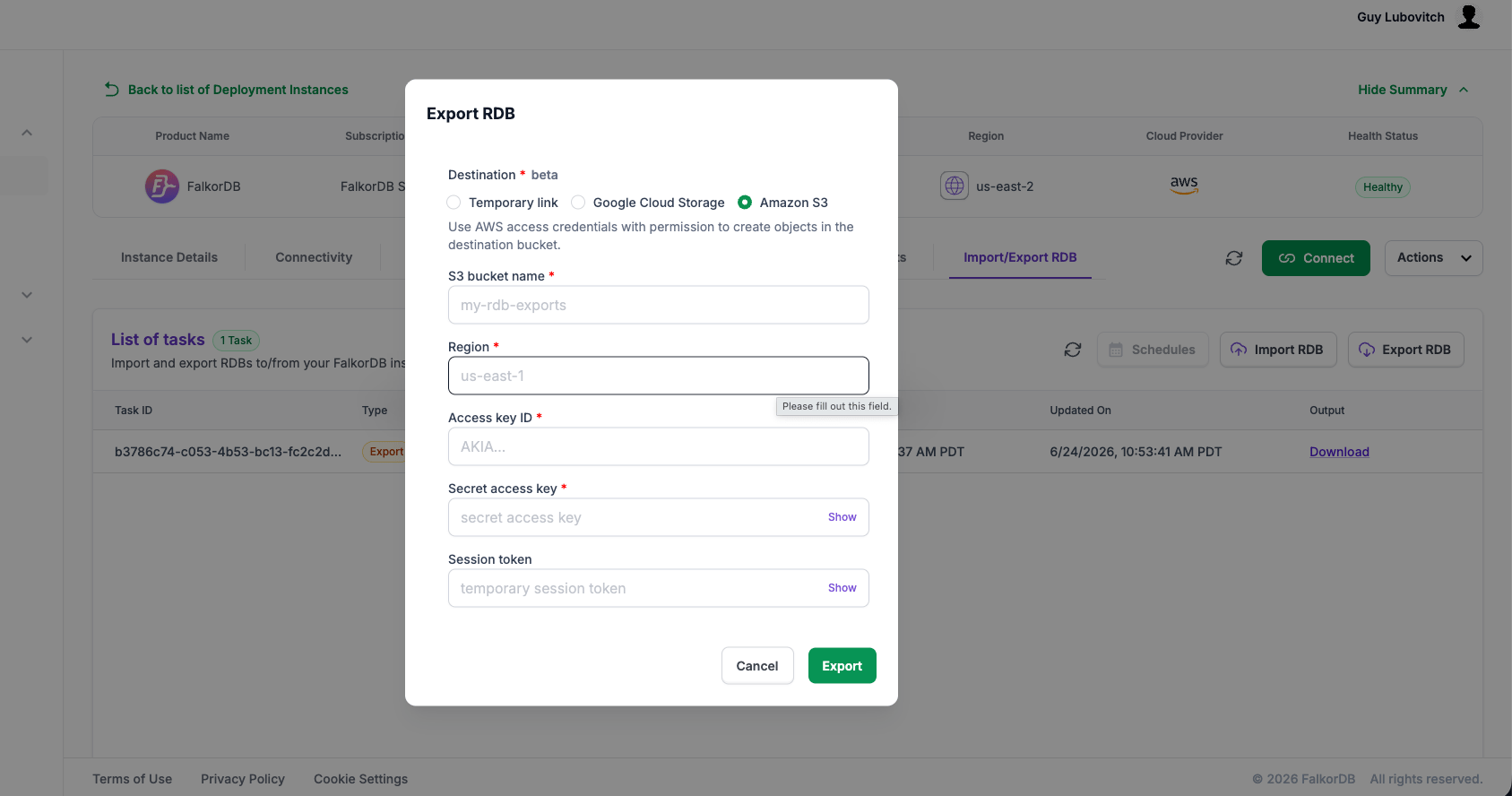
Import
An import loads an RDB into your instance.Caution. The instance is erased before the import takes place. FalkorDB takes a safety copy of the current data before clearing it, and verifies the imported key count after the load.
- Open the Import/Export RDB tab on your instance.
- Select Import RDB.
- Choose a source and fill in the details.
- Select Import.
Upload a file
Upload an RDB file from your local machine.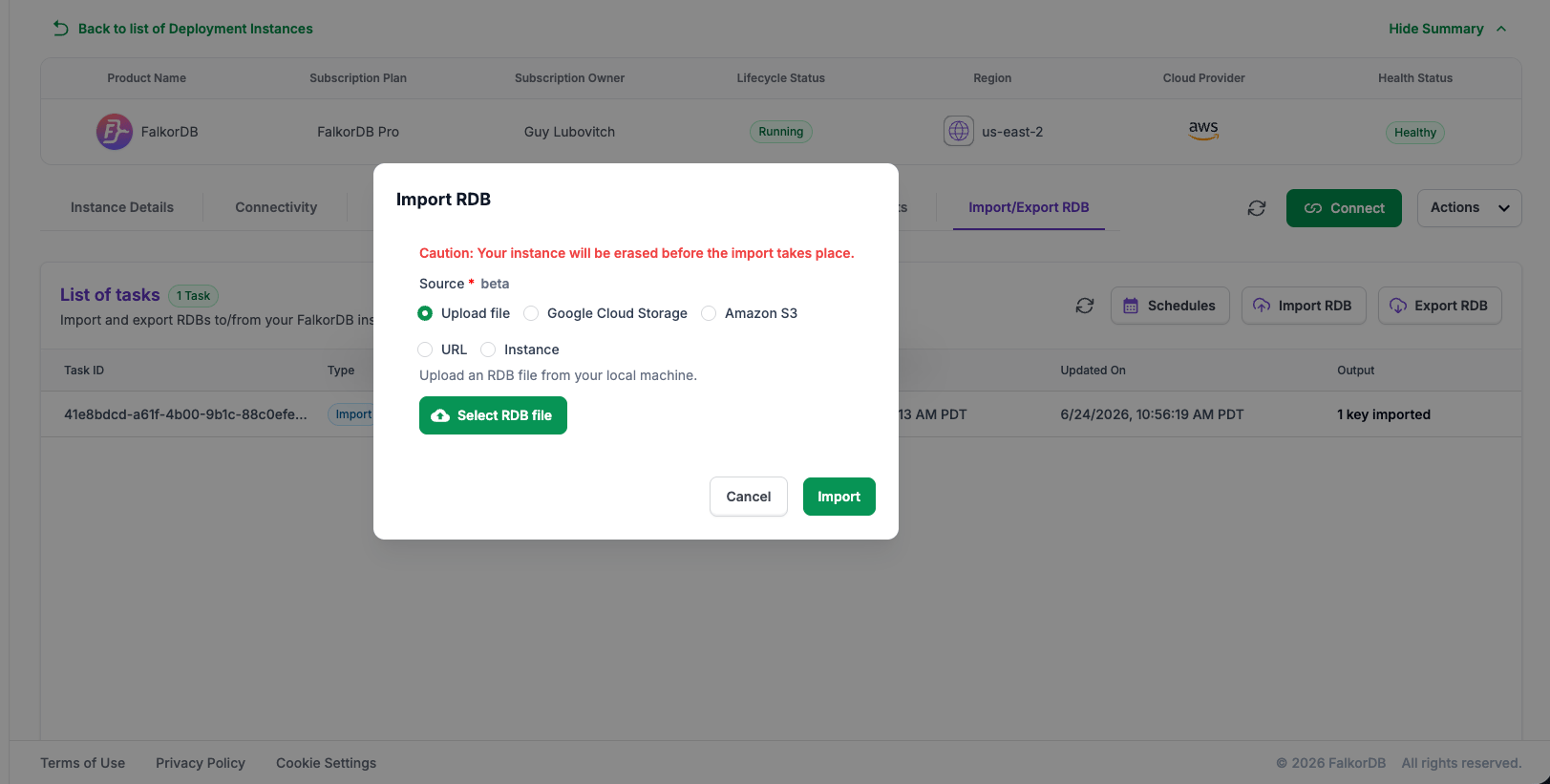
URL
Provide a public HTTPS URL to the RDB file. The URL must use HTTPS and must not point to a private or internal address. FalkorDB checks that the file is reachable before it starts.Google Cloud Storage
Read the RDB from your own Google Cloud Storage bucket. Provide the bucket name, the RDB file path, and a GCP service account key with permission to read objects from that bucket.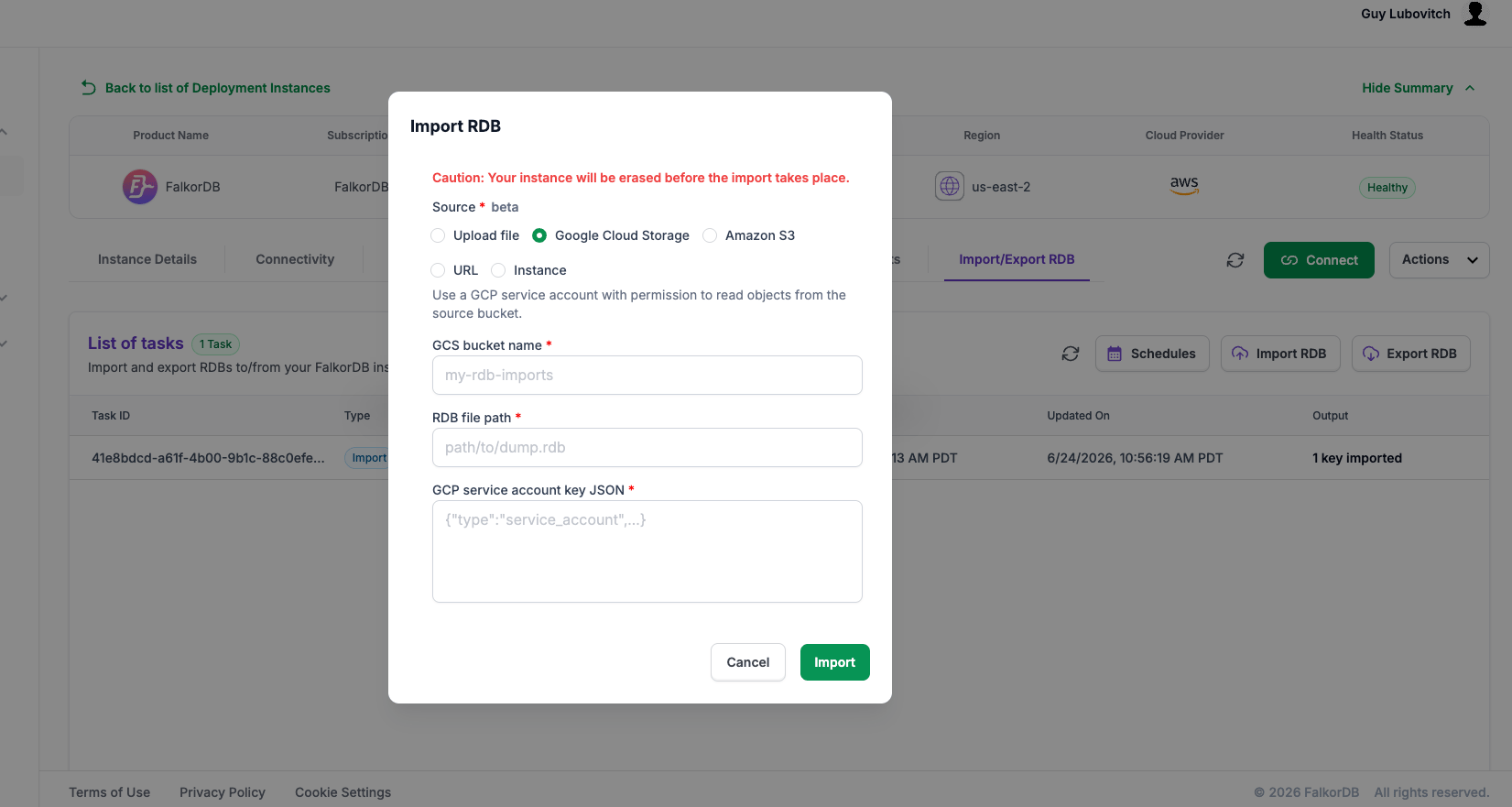
Amazon S3
Read the RDB from your own Amazon S3 bucket. Provide the bucket name, the RDB file path, the region, and AWS access credentials with permission to read objects from that bucket. A session token is optional.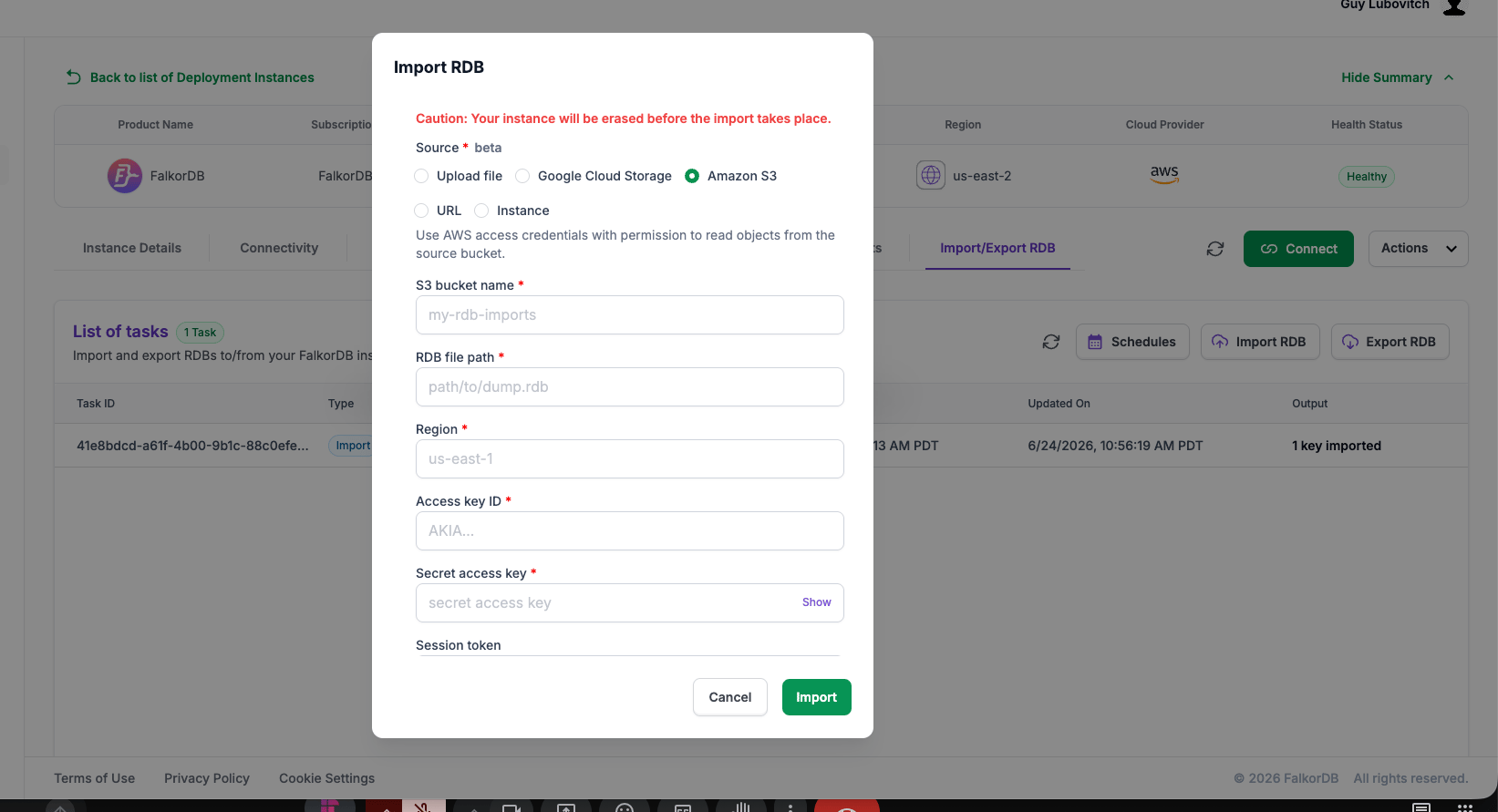
Another instance
Clone the data from another running FalkorDB Cloud instance. FalkorDB checks that the source data fits the destination before it starts.Scheduled exports
Scheduled exports are available on the Pro and Enterprise tiers. On lower tiers the Schedules button is disabled. Open Schedules from the Import/Export RDB tab to create and manage them.- Set how often the export runs. The period is at least 60 minutes and a multiple of 15.
- Set the minute of the hour the export starts. The choices are 0, 15, 30, or 45.
- You can keep up to 2 schedules per instance.
- A schedule is disabled automatically after 3 consecutive failures.
Task history
The task list on the Import/Export RDB tab shows your past exports and imports. Each row shows the task type, the source or destination, the status, the timestamps, and the output. Statuses move from created to pending, in_progress, and then completed or failed.Limits
Getting Support
Questions about an export or import? Email support@falkordb.com. See the Support page for what to include in your request.Frequently Asked Questions
How is an export different from a snapshot or an automatic backup?
How is an export different from a snapshot or an automatic backup?
An export is an RDB file you create or schedule, sent to a download link or your own cloud storage. Automatic backups and snapshots are taken by the platform and are managed separately. See your tier page for those policies.
Does an import overwrite my current data?
Does an import overwrite my current data?
Yes. The instance is erased before the import. FalkorDB takes a safety copy of the current data before clearing it, then verifies the imported key count after the load.
Which destinations and sources are supported?
Which destinations and sources are supported?
Export goes to a temporary download link, Google Cloud Storage, or Amazon S3. Import reads from an uploaded file, a URL, Google Cloud Storage, Amazon S3, or another instance.
Can I schedule exports on any tier?
Can I schedule exports on any tier?
Scheduled exports are available on the Pro and Enterprise tiers. On lower tiers the Schedules button is disabled.
Are my cloud storage credentials stored?
Are my cloud storage credentials stored?
No. Credentials you enter for your own bucket are used only to reach that bucket for the task. They are not kept on the task record.