

Customer networks are available on the Enterprise tier. The Customer Networks page appears in the sidebar only when you have an Enterprise subscription.
Create a customer network
- In the sidebar, open Deployments > Customer Networks.
- Select Create.
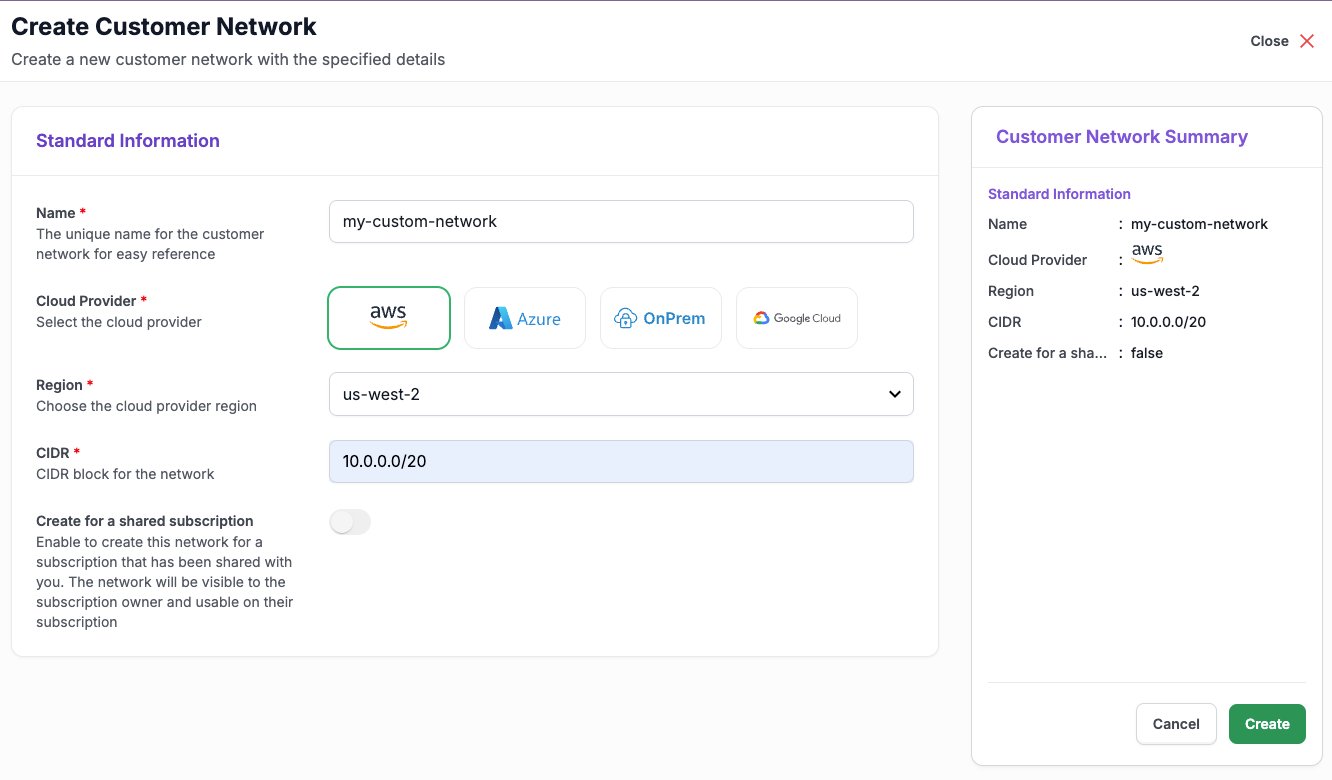
- Fill in the form:
- Name: a name to help you find the network.
- Cloud Provider: the provider your instances will run on.
- Region: the region your instances will run in. It must match the region you choose for the instance.
- CIDR: the private IP range for the network. It must be a
/20block or larger, for example10.0.0.0/20or10.0.0.0/16. Smaller blocks, such as/24, aren’t supported. - Create for a shared subscription: turn this on only to create the network for a subscription someone else shared with you. The subscription owner can then see and use it.
- Check the Customer Network Summary and select Create.
READY before you use it for an instance or request peering. After you create it, you can change only the network’s Name.
Use the network for an instance
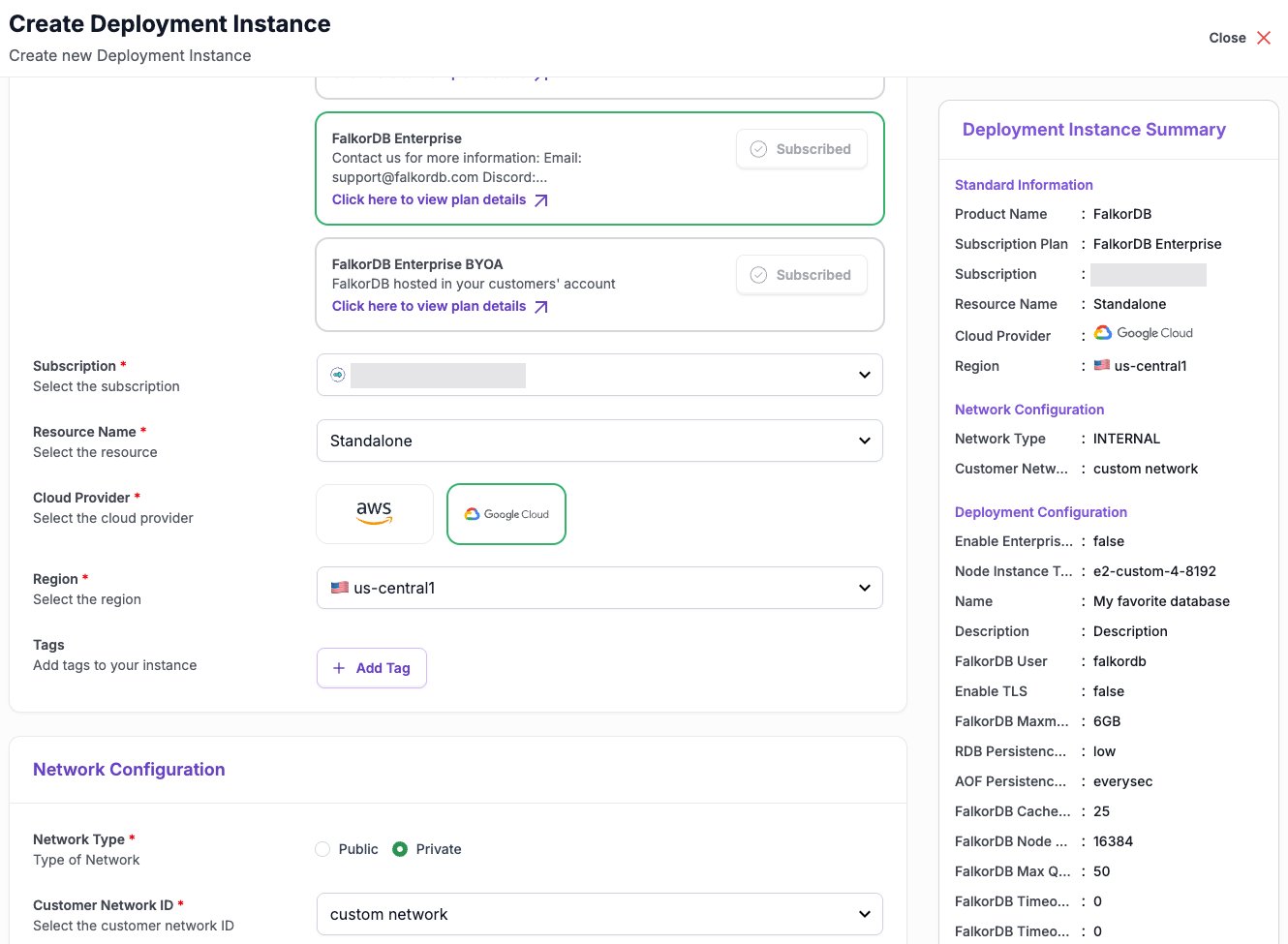
When you create an instance:- In Network Configuration, set Network Type to Private.
- Under Customer Network ID, choose your network. The list shows only networks in the cloud provider and region you selected.
Set up network peering
Peering is set up with the FalkorDB team through a support ticket.- Open a ticket by emailing support@falkordb.com, or ask your account manager. Include:
- The Network ID of your customer network, from the Customer Networks page.
- Your cloud provider and region.
- The account, project, or subscription ID and the VPC or VNet you want to peer with.
- Its CIDR range.
- The FalkorDB team creates the peering connection and replies with the details.
- In your cloud provider’s console, accept or approve the peering request as your provider requires.
- Add routes for the customer network’s CIDR to your route tables, and allow traffic to the instance port shown on the Connectivity tab in your security groups or firewall rules.
Connect to a private instance
Instances in a customer network show Private on the Connectivity tab. Connect to the endpoint from a machine inside your peered network. See Connect to your instance. The Connect button for FalkorDB Browser is turned off for private instances, because the browser can’t reach them.Delete a customer network
Delete the instances that use the network first. Then select the network, choose Delete, and typedeleteme to confirm.
To manage networks with the API, see Custom networks.