

Snapshots are kept for 14 days.
The Free tier has no backups or snapshots, so its instances don’t have the Backups and Snapshots tabs. To keep a copy of Free data, export an RDB file.
Review backups
Open your instance and select the Backups tab. Backup Summary shows:- Last Backup Time and Earliest Restore Time
- Retention duration
- Recovery Point Objective and Recovery Time Objective
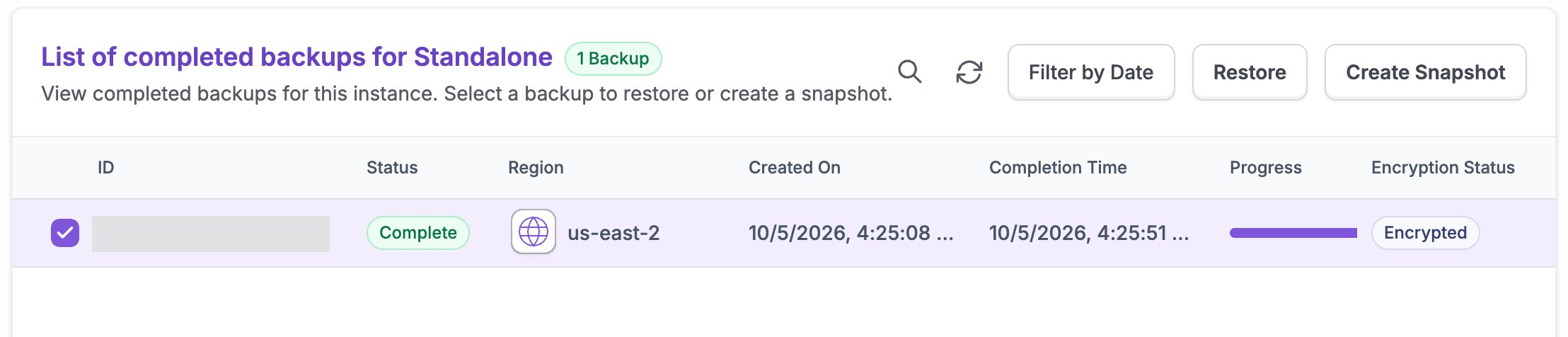
Take a snapshot
- On the Backups tab, select Create Snapshot.
- Choose the Target Region for the snapshot and confirm.
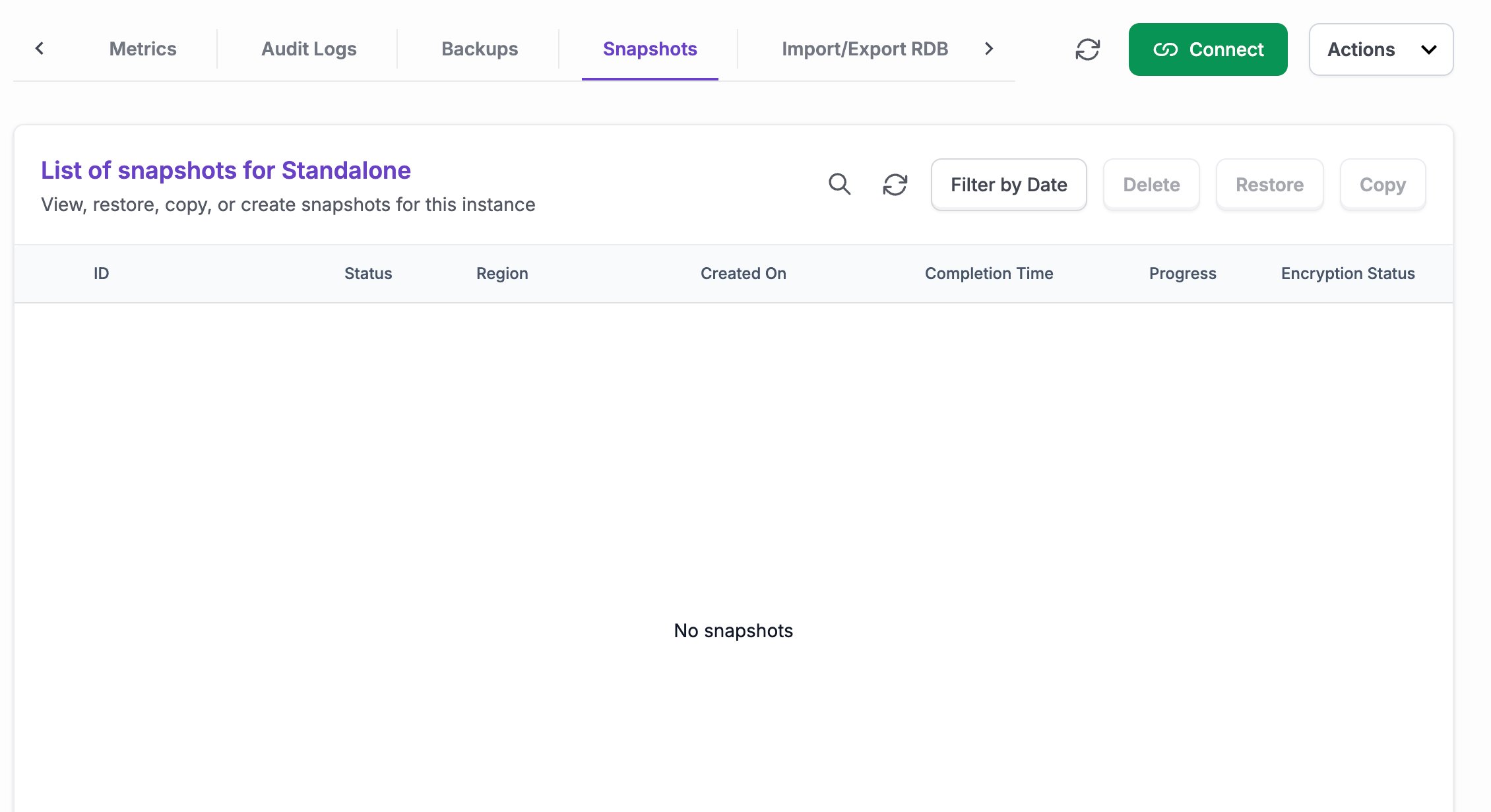
Restore from a backup or snapshot
- Open the Backups or Snapshots tab on the instance. You can also open Deployments > Instance Snapshots to see snapshots from every instance.
- Select the backup or snapshot you want and choose Restore.
- If the instance uses a customer network, choose the network for the restored instance.
- Type
restoreto confirm, then select Restore.
Restore to a point in time
- In the Instances list, open the actions menu for the instance and select Restore.
- Choose a Select Date and Select Time (UTC) between the earliest restore time and now.
- Select Restore.
Copy a snapshot to another region
On the Snapshots tab or the Instance Snapshots page, select a snapshot, choose Copy, and pick the Target Region. Use this to restore an instance in a different region.Frequently asked questions
Does a restore overwrite my instance?
Does a restore overwrite my instance?
No. Restoring a backup or snapshot creates a new instance. Your original instance isn’t changed. To load data into an existing instance, use Import RDB.
What's the difference between a backup, a snapshot, and an export?
What's the difference between a backup, a snapshot, and an export?
Backups are taken automatically on a schedule. Snapshots are taken when you ask, when an instance stays stopped for too long, or when you choose Take final snapshot before deletion. Both stay inside FalkorDB Cloud. An export writes an RDB file to a download link or your own cloud storage, where you control how long it’s kept.
Does the Free tier have backups?
Does the Free tier have backups?
No. The Free tier has no persistence and no backups. Use Export RDB to keep a copy of your data.