

Find your connection details
- In the sidebar, open Deployments > Instances and select your instance.
- Open the Connectivity tab. The Endpoint card shows the endpoint as
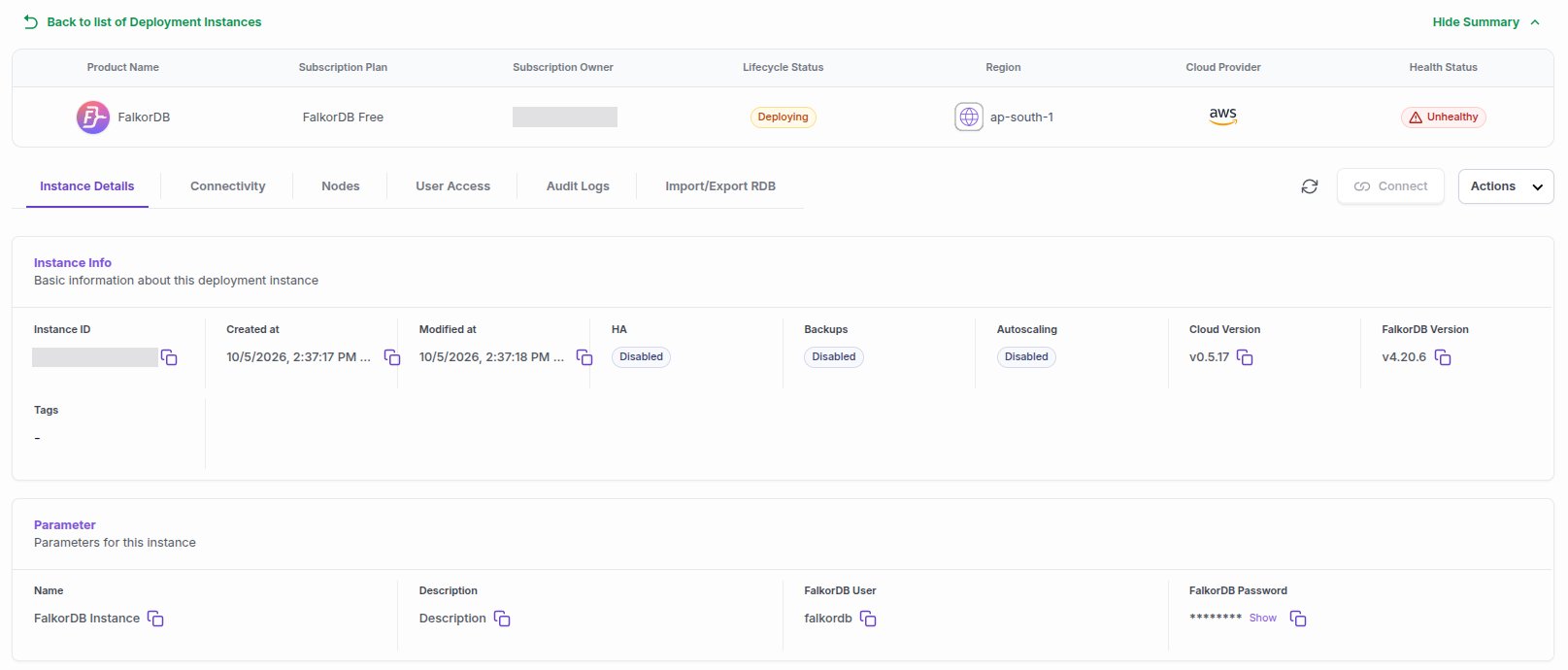
host:port. Select the copy icon to copy it. - Open the Instance Details tab. Under Parameter, find the FalkorDB User (by default
falkordb) and the FalkorDB Password. Select Show to see the password, or the copy icon to copy it. On paid tiers, this section also shows whether TLS is enabled.
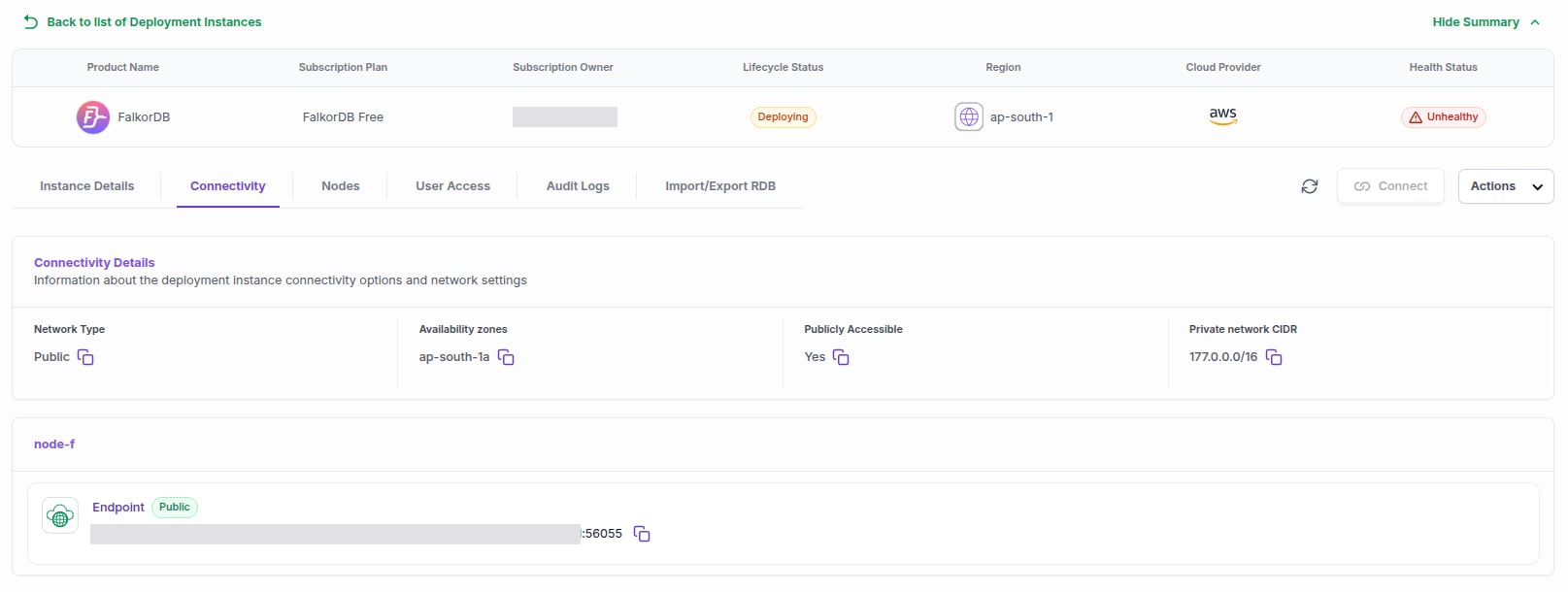
Use the port shown on the endpoint. It’s often not the default
6379.The Connectivity tab appears only while the instance is running. Instances in a Private network have no public endpoint. Connect to them from inside your peered network. See Customer networks.
Open FalkorDB Browser
FalkorDB Browser is a web UI for running queries and exploring your graphs visually.- Wait until the instance status is Running.
- On the instance page, or on the Instances list with the instance selected, select Connect.
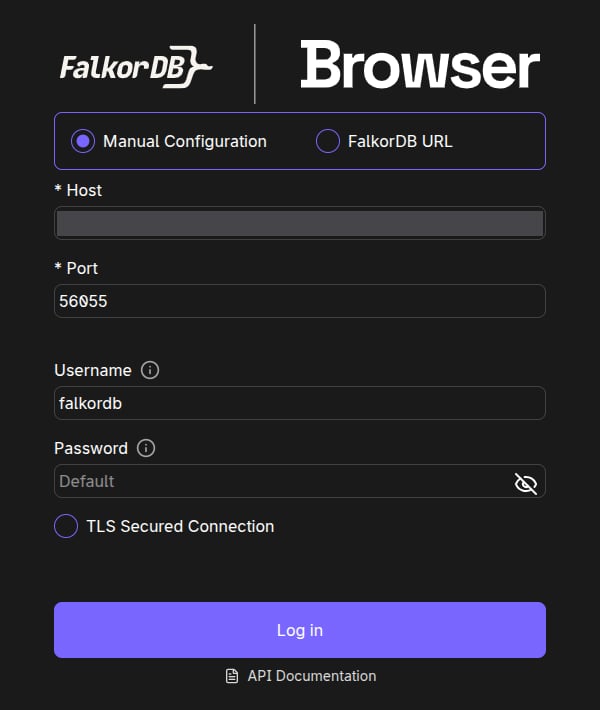
- FalkorDB Browser opens in a new tab with the Host, Port, Username, and TLS Secured Connection setting filled in. Enter your Password and select Log in.

Connect with redis-cli
Replace<host>, <port>, and the password with the values from the console. Add --tls if the instance has TLS enabled.
Connect with a client library
Each example connects to a TLS-enabled instance. For an instance without TLS, including every Free instance, remove the TLS option (ssl=True or tls: true).
Troubleshooting
Still stuck? Email support@falkordb.com with your instance ID.