

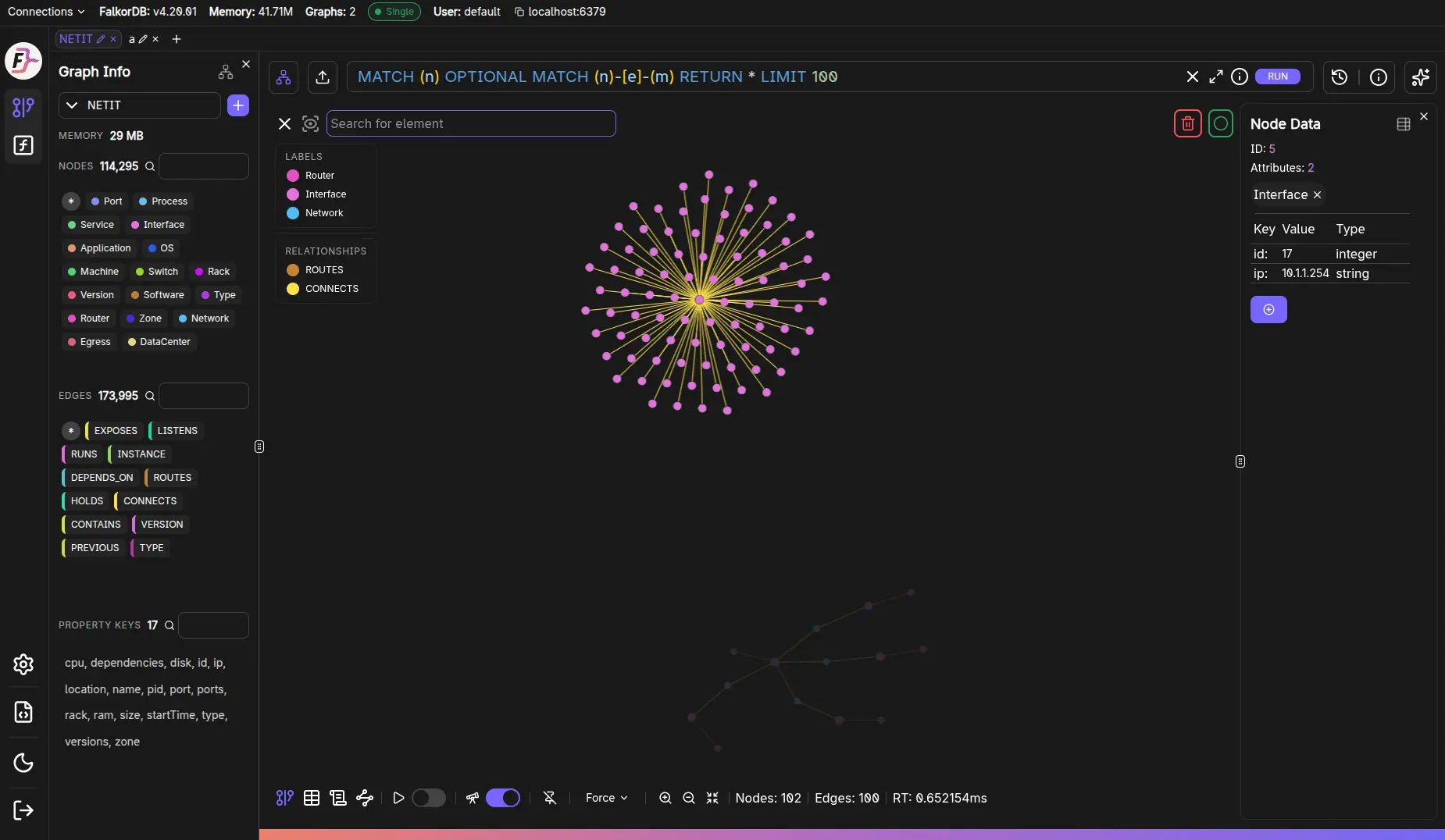
In-canvas element search
The search input supports matching against:- Node/edge property values (string prefix match)
- IDs
- Relationship type (edges)
- Labels (nodes)
Enter: jump/select the highlighted suggestionArrow Up/Down: move through suggestionsEsc: clear search
Show All
Hiding node labels or relationship types from the Graph Info lists only affects what is drawn, not what was returned. The Show All button restores every hidden label and relationship type in one click. It is disabled when nothing is hidden, and it is available to read-only users as well, since revealing elements is not an edit.Element actions (create / delete)
When the user is not Read-Only, the toolbar supports:- Add node
- Add edge (typically only enabled when two nodes are selected)
- Delete selected element(s)
Layout & limit warnings
The toolbar can display warnings when:- The current query hit a result limit
- The configured limit changed relative to the last query
Frequently Asked Questions
How does the in-canvas search work?
How does the in-canvas search work?
Type in the search input to match against node/edge property values (prefix match), IDs, relationship types, or labels. Select a suggestion to zoom the canvas to that element.
How do I add a new node to the graph?
How do I add a new node to the graph?
Click the Add node button in the toolbar (available to non–Read-Only users). This opens the Add panel where you can specify labels and properties for the new node.
How do I add an edge between two nodes?
How do I add an edge between two nodes?
Select two nodes on the canvas, then click Add edge in the toolbar. This is typically only enabled when exactly two nodes are selected.
How do I bring back elements I hid?
How do I bring back elements I hid?
Click Show All in the toolbar. It re-enables every hidden node label and relationship type at once and is disabled when nothing is hidden.
What does the result limit warning mean?
What does the result limit warning mean?
It means your query returned more results than the configured limit allows. Increase the Limit in Settings → Browser Settings → Query Execution to see more results.