

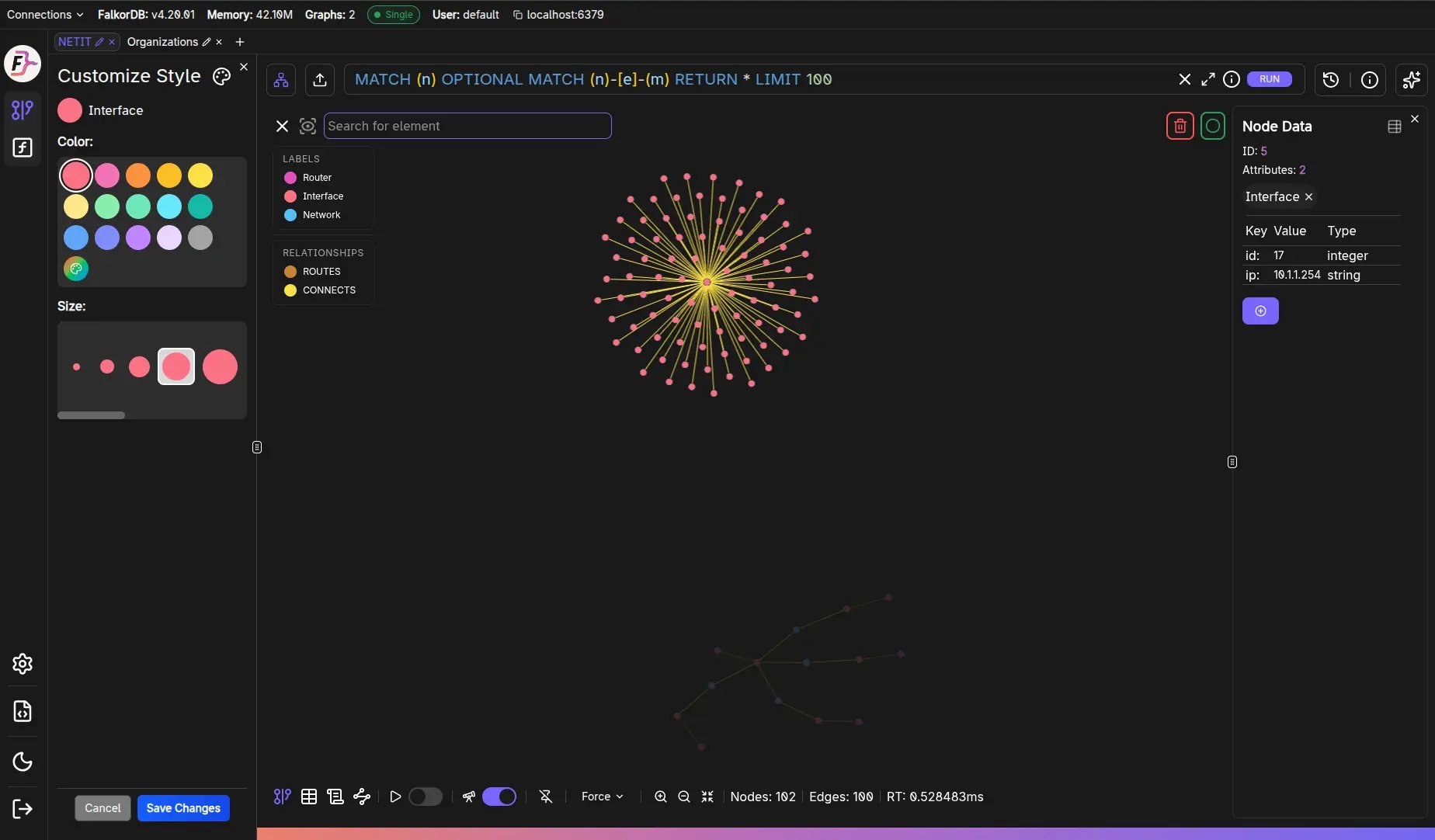
How to open
- Open Graph Info.
- Click the palette icon next to a node label or a relationship type.
What you can change
- Color
- 15 preset colors
- A custom color, chosen with the color picker or typed as a hex value
- Size
- Ten scale options from
0.25xto2.50x
- Ten scale options from
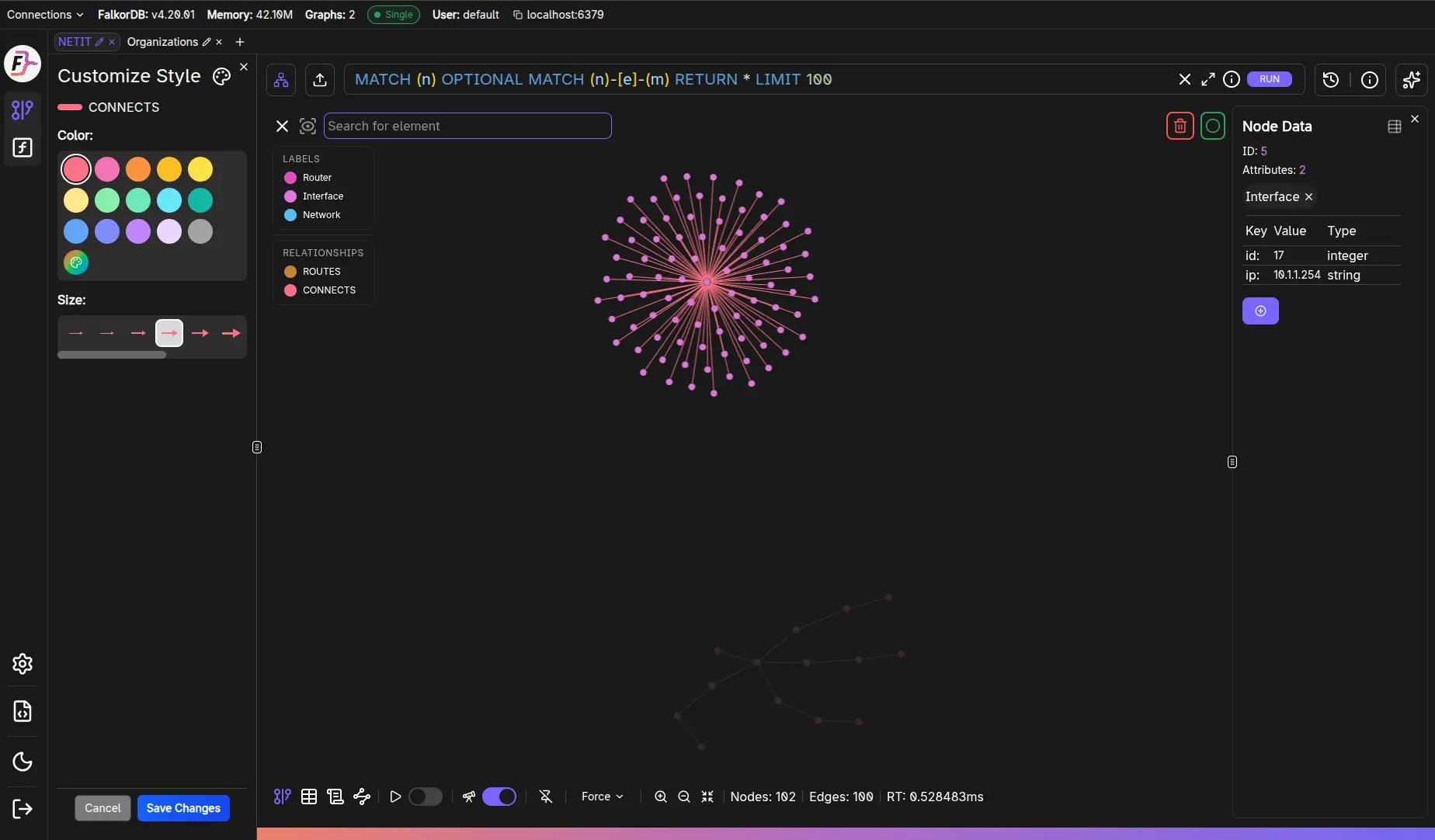
Save vs Cancel
The Cancel and Save Changes buttons appear only once you have changed something.- Save Changes
- Persists the style so the label or relationship type keeps it.
- Cancel
- Reverts to the original values. The panel stays open.
- Close (
X)- Closes the panel.
Tutorial note
During the tutorial, saving style changes is intentionally prevented.Frequently Asked Questions
How do I open the Customize Style panel?
How do I open the Customize Style panel?
Open the Graph Info panel, then click the palette icon next to the node label or relationship type you want to customize.
Can I style relationships as well as nodes?
Can I style relationships as well as nodes?
Yes. Relationship types have their own color and size. The size multiplier scales the line width, the relationship label font size, and the arrowhead together.
Are style changes saved automatically?
Are style changes saved automatically?
No. Click Save Changes to persist them. Cancel reverts to the original color and size without closing the panel.
Can I use a custom color?
Can I use a custom color?
Yes. Besides the 15 preset colors, the palette button opens a color picker where you can also type a hex value.
Do style changes affect other users?
Do style changes affect other users?
No. Styles are stored in your browser and scoped to the active connection, so they only apply to you.