

/settings) is where you configure Browser behavior and manage security/admin features.
Tabs / sections
The Settings page is organized into these sections:- Browser Settings (all users)
- Personal Access Tokens (all users)
- DB Configurations (Admin only; requires online connection)
- Users (Admin only; requires online connection)
Browser Settings
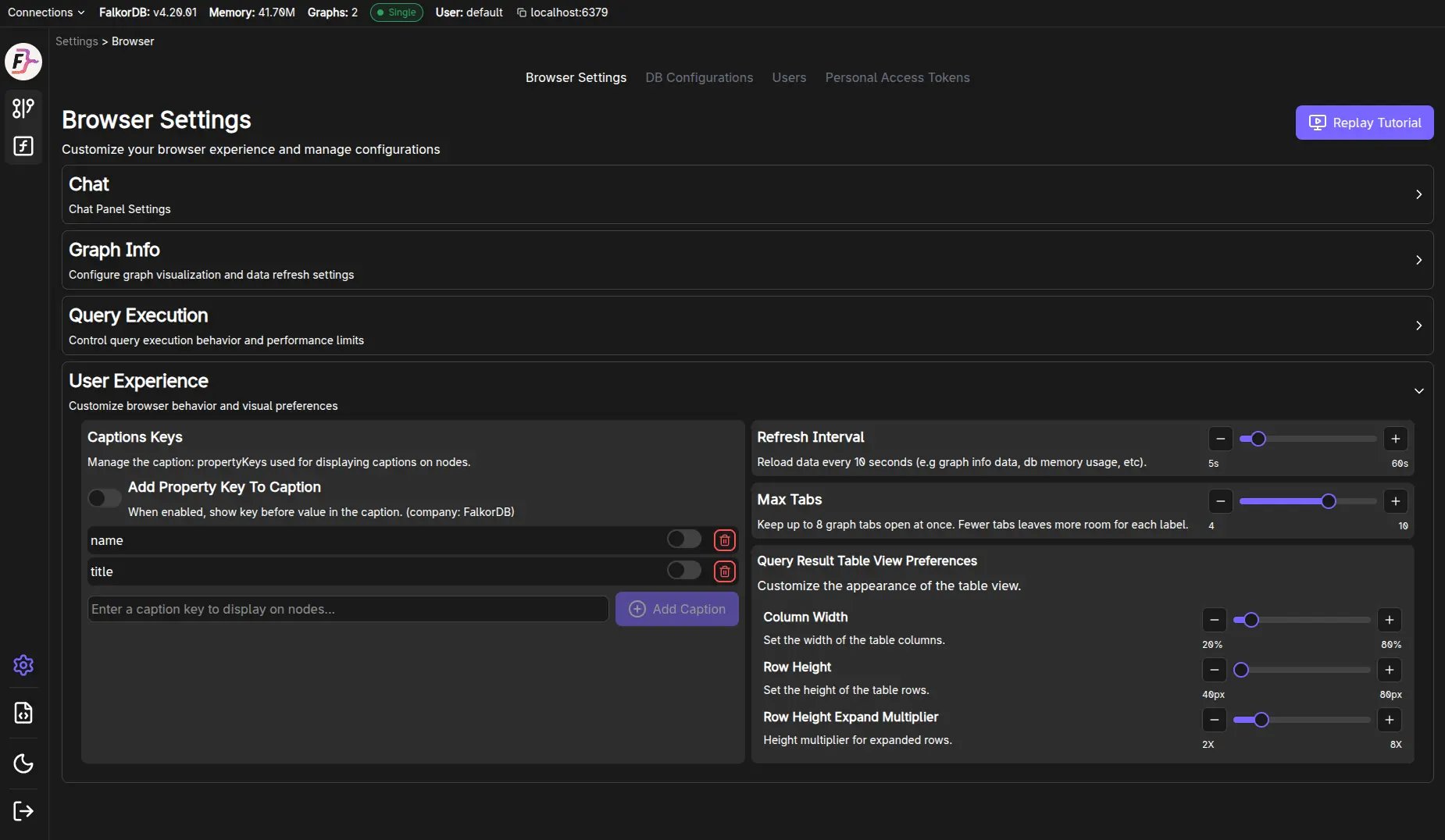
Browser Settings is a long page of collapsible sections. At the top right, Replay Tutorial restarts the guided tour; at the bottom, Cancel Changes and Save Settings apply or discard your edits.Chat
- Store latest interactions (per graph) [5..10] — how many messages to keep. Stored history is keyed by tab and graph, so two tabs on the same graph keep separate histories and this cap applies to each of them independently.
- LLM connection — cloud API key or local LLM, the saved keys, the local provider and server URL, and the model
Graph Info
- Max Items For Search — caps how many items the Graph Info lists offer
Query Execution
- Timeout — how long a query may run before it is stopped
- Limit — the maximum number of rows a query returns
- Default Query On-load — the query to run when a graph is selected, and a switch to turn it off
User Experience
- Captions Keys — which property keys are used as node and edge captions, in priority order, plus Add Property Key To Caption to add your own
- Show property key prefix — whether captions include the key name
- Refresh Interval — how often graph info and database state are reloaded
- Max Tabs — how many graph tabs can be open at once (4–10, default 8)
- Query Result Table View Preferences — Column Width, Row Height, and Row Height Expand Multiplier
Chat and LLM connection
Use Settings → Browser Settings → Chat to choose what powers the Chat panel. You can use either:
The LLM connection area shows what Chat is currently configured to use. The status badge shows:
- Saved when the displayed source, key/provider, endpoint, and model are already saved.
- Pending when you changed something and still need to click Save Settings.
If models do not appear, make sure the local server is running and the endpoint is correct.
Replay Tutorial
Browser Settings includes a Replay Tutorial action, which re-runs the guided tour overlay.The last graph and query you used are no longer restored by a “content
persistence” setting. That is handled by graph tabs,
which are saved per connection.
Personal Access Tokens
The Tokens section provides a UI to:- Create tokens (often with optional expiry)
- View/revoke existing tokens
Admin-only sections
DB Configurations (Admin)
Allows viewing/updating database configuration values via the server API.Users (Admin)
Allows:- Viewing users
- Changing roles
- Adding/removing users
Keyboard shortcut
Escnavigates back (with a save/discard prompt if there are unsaved Browser Settings changes).
Frequently Asked Questions
How do I configure the Chat/LLM feature?
How do I configure the Chat/LLM feature?
Go to Settings → Browser Settings → Chat. Choose Cloud/API key to use a hosted provider key, or Local LLM to use Ollama or LM Studio. Then select the key/provider, endpoint if local, and model, and click Save Settings.
What can Admin users do that regular users cannot?
What can Admin users do that regular users cannot?
Admin users can access DB Configurations (view/update server config) and Users management (add/remove users, change roles). These sections require an online connection.
How do I create a Personal Access Token?
How do I create a Personal Access Token?
Go to Settings → Personal Access Tokens and click create. You can optionally set an expiry date. Tokens can be revoked from the same section.
How do I replay the onboarding tutorial?
How do I replay the onboarding tutorial?
Go to Settings → Browser Settings and click the Replay Tutorial action to re-run the guided tour overlay.
How do I change how many graph tabs I can open?
How do I change how many graph tabs I can open?
Go to Settings → Browser Settings → User Experience and move the Max Tabs slider. It accepts 4 to 10 tabs and defaults to 8. Lowering it never closes tabs you already have open.