> ## Documentation Index
> Fetch the complete documentation index at: https://docs.falkordb.com/llms.txt
> Use this file to discover all available pages before exploring further.
> ## Agent Instructions
> FalkorDB is a graph database that speaks the Redis protocol. Queries are issued as OpenCypher through the GRAPH.QUERY and GRAPH.RO_QUERY commands, not over Bolt or a SQL connection.
> FalkorDB implements a subset of OpenCypher with proprietary extensions. Do not assume Neo4j-only syntax or procedures are available — check /cypher/cypher-support and /cypher/known-limitations before using a clause.
> FalkorDB is the successor to RedisGraph, but they are separate products. Do not present RedisGraph commands, versions, or limitations as current FalkorDB behavior.
> Use the official clients listed in /getting-started/clients rather than generic Redis or Neo4j drivers, and prefer the language the user is already working in.
> Configuration parameters are set with GRAPH.CONFIG SET or at startup; cite the exact parameter name from /getting-started/configuration rather than inventing one.
> This site covers four products: FalkorDB (core), FalkorDB Cloud, FalkorDB Enterprise, and the GraphRAG SDK. Name which one an answer applies to, since setup and operations differ.
# n8n GraphRAG Nodes
> Use FalkorDB GraphRAG from n8n workflows with a pipeline node, an AI Agent tool, and a shared credential.
The [FalkorDB GraphRAG n8n community node](https://github.com/FalkorDB/GraphRAG-n8n) connects n8n workflows to a [FalkorDB GraphRAG-Server](https://github.com/FalkorDB/GraphRAG-Server). It does not talk to FalkorDB directly. Instead, it uses the GraphRAG-Server REST API to ingest content into a knowledge graph and answer questions against that graph.
The package ships two nodes and one shared credential:
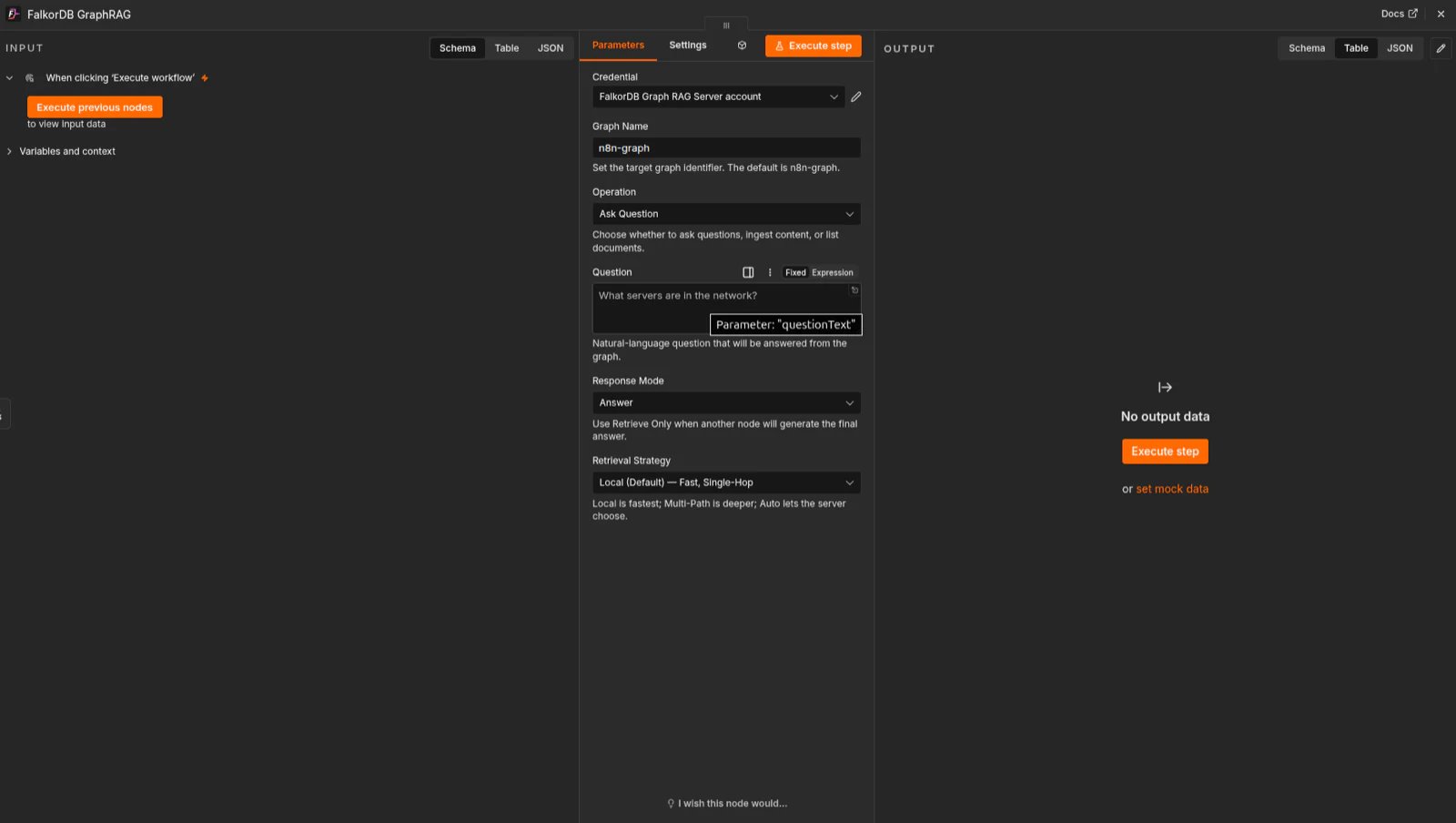
* `FalkorDB GraphRAG`: a regular pipeline node for ingest and question-answering steps.
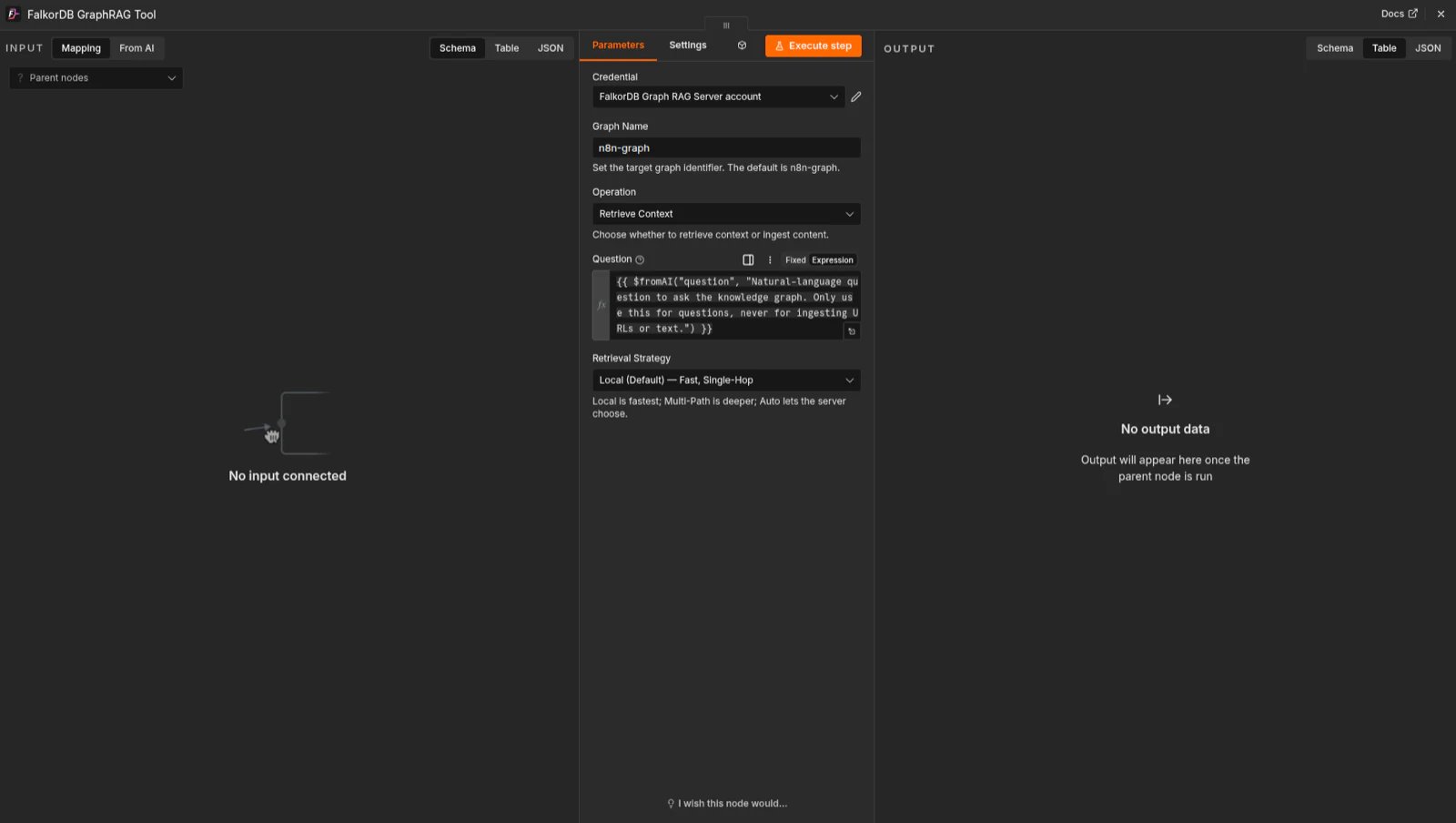
* `FalkorDB GraphRAG Tool`: an AI Agent tool node that can be called autonomously.
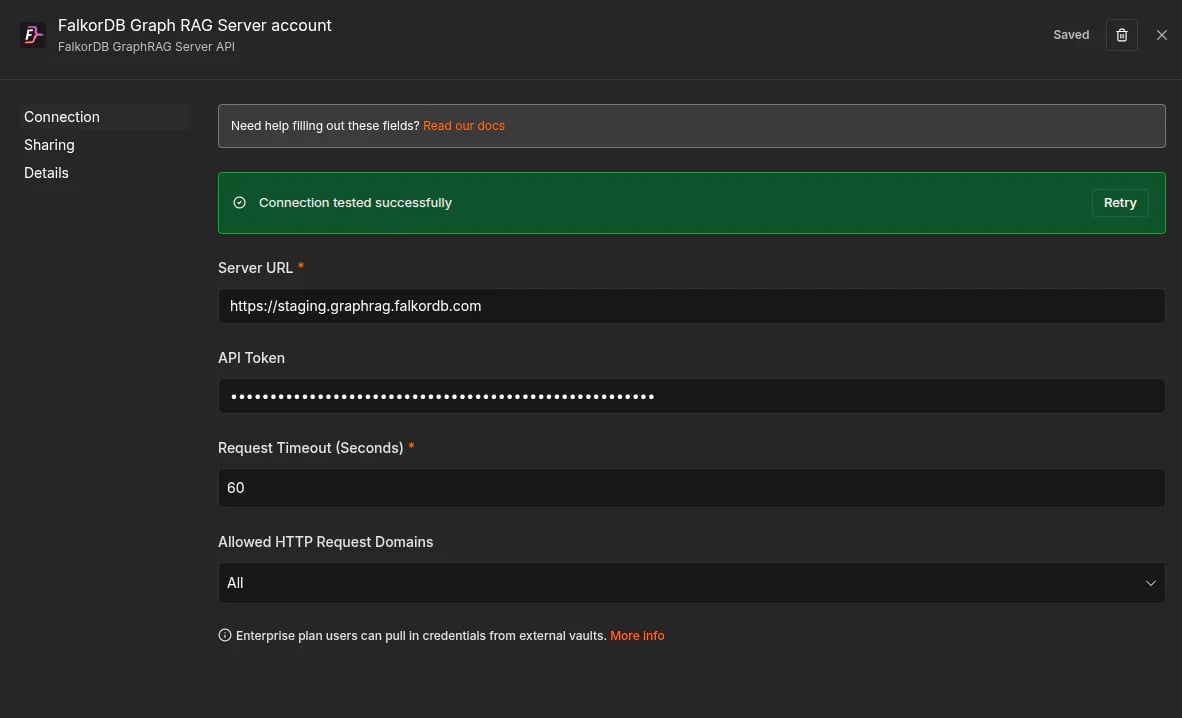
* `FalkorDB GraphRAG Server API`: the credential that stores the server URL, API token, and request timeout.
## Typical workflow
```mermaid theme={null}
flowchart LR
A[n8n workflow] --> B[FalkorDB GraphRAG node]
B --> C[GraphRAG-Server]
C --> D[FalkorDB]
```
## Installation
Install `@falkordb/n8n-nodes-graphrag` from the n8n Community Nodes UI, or use npm in a self-hosted n8n instance:
```bash theme={null}
npm install @falkordb/n8n-nodes-graphrag
```
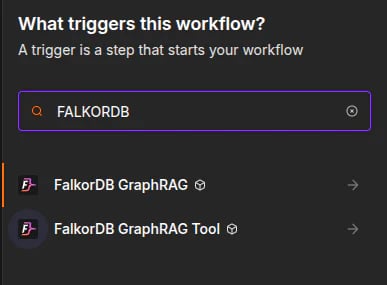
After installation, the two nodes appear under the FalkorDB category in the node picker.
## Setup
Create one credential under **Credentials -> New -> FalkorDB GraphRAG Server API** and reuse it across both nodes.
| Field | Required | Description |
| ----------------------------- | -------- | ------------------------------------------------------------------------------- |
| **Server URL** | yes | Base URL of your GraphRAG-Server instance, for example `http://localhost:8000`. |
| **API Token** | no | Sent as `Authorization: Bearer ...` when the server requires authentication. |
| **Request Timeout (Seconds)** | yes | Per-request timeout for GraphRAG-Server calls. |
## How to get an API token
Use these steps in GraphRAG-Server before configuring the n8n credential.
### 1. Open Settings and API Access
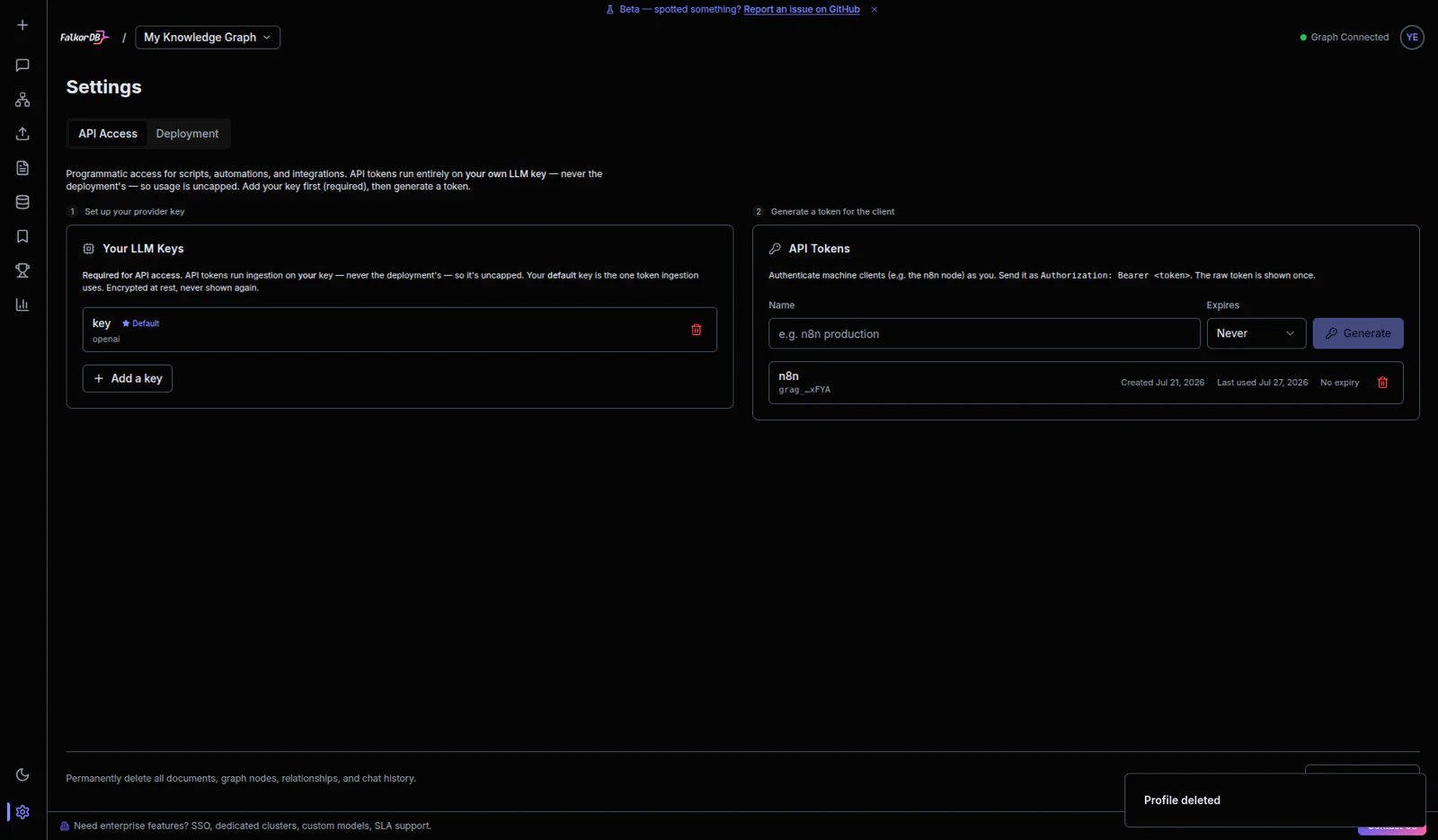
Open your graph in GraphRAG-Server, then go to **Settings** and keep the **API Access** tab selected.
 ### 2. Add your LLM key
In **Your LLM Keys**, add a provider key if one is not already present. API tokens run on your own LLM key, so this step is required first.
### 2. Add your LLM key
In **Your LLM Keys**, add a provider key if one is not already present. API tokens run on your own LLM key, so this step is required first.
 ### 3. Generate the client API token
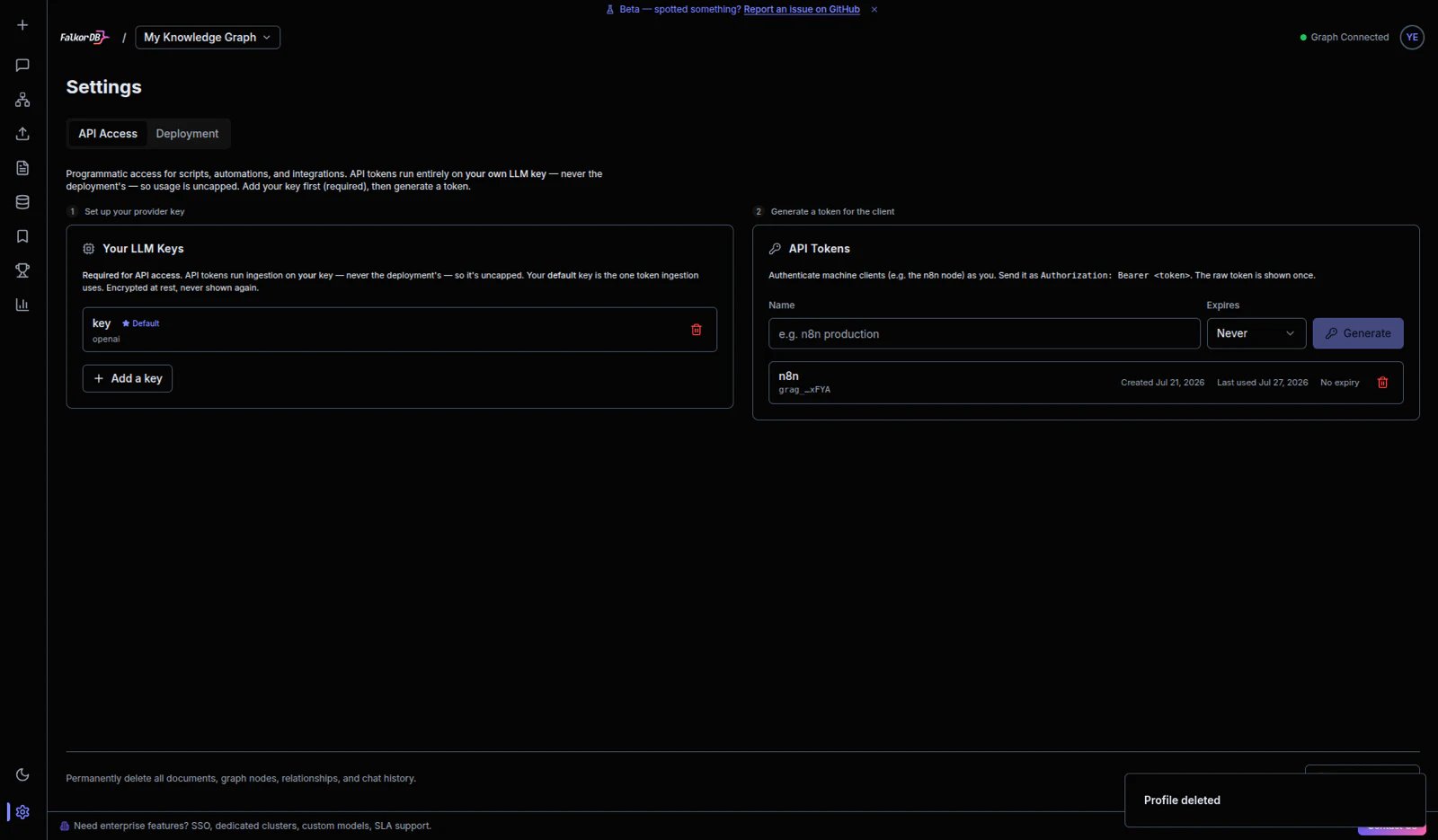
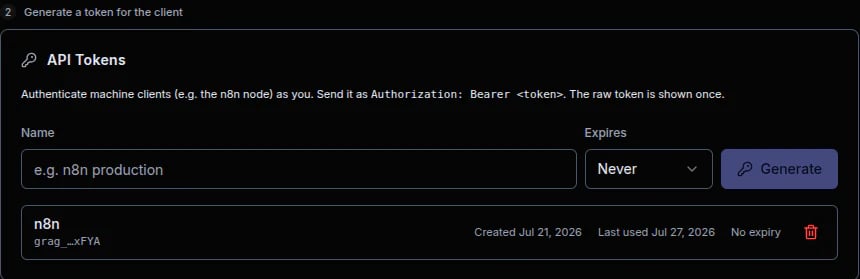
In **API Tokens**, enter a token name (for example, `n8n production`), choose expiration, and click **Generate**. Copy the raw token value when shown and paste it into the n8n credential **API Token** field.
### 3. Generate the client API token
In **API Tokens**, enter a token name (for example, `n8n production`), choose expiration, and click **Generate**. Copy the raw token value when shown and paste it into the n8n credential **API Token** field.
 ## Screenshots
### Node picker
## Screenshots
### Node picker
 ### Pipeline node
 ### AI Agent tool
 ### Credential
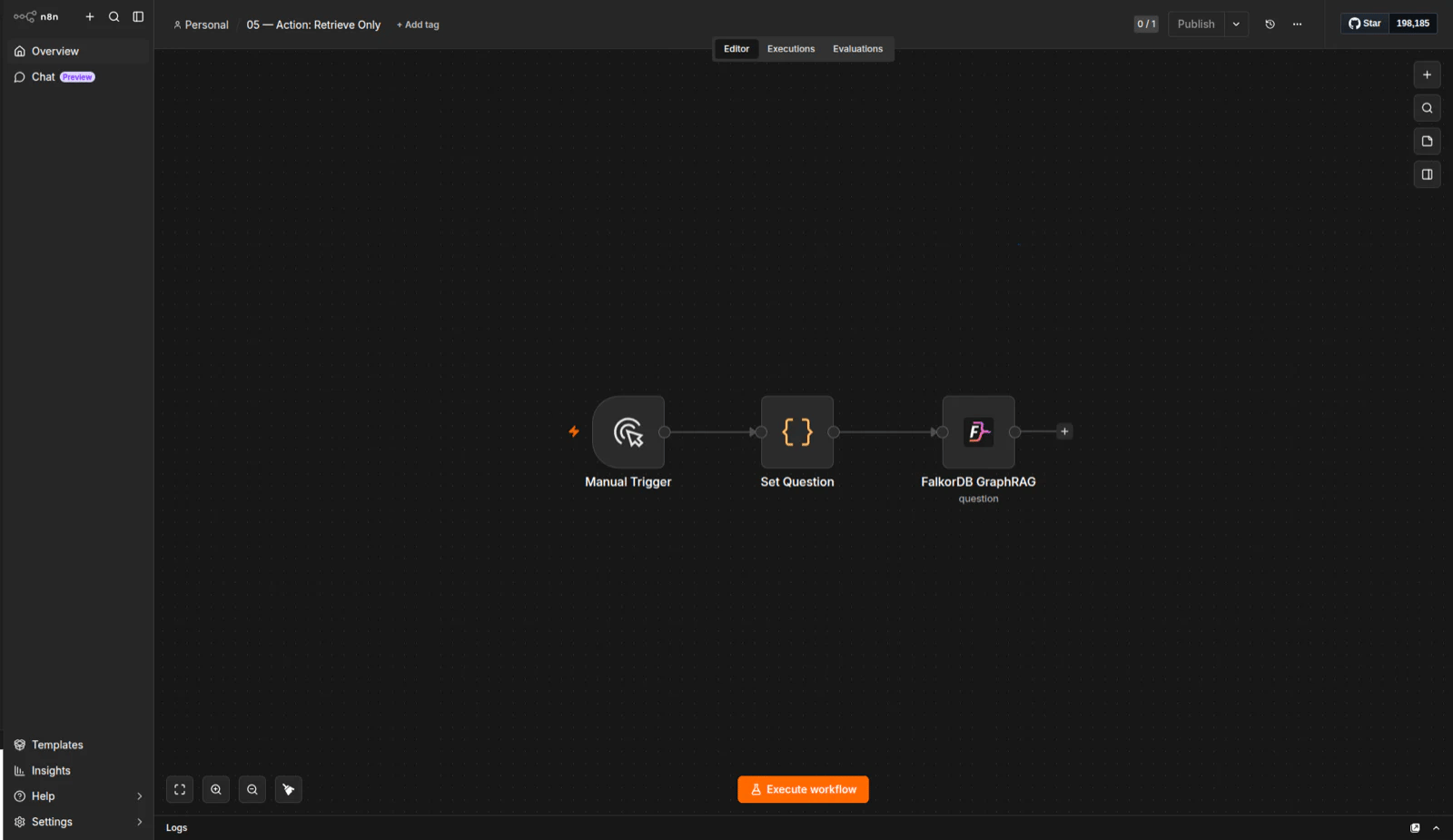
 ### Retrieve only workflow
 ## When to use it
Use the pipeline node when you want to ingest documents, list documents, or answer questions as part of a workflow. Use the AI Agent tool when you want the agent to decide when to query the knowledge graph and fill the node parameters automatically.
## When to use it
Use the pipeline node when you want to ingest documents, list documents, or answer questions as part of a workflow. Use the AI Agent tool when you want the agent to decide when to query the knowledge graph and fill the node parameters automatically.