> ## Documentation Index
> Fetch the complete documentation index at: https://docs.falkordb.com/llms.txt
> Use this file to discover all available pages before exploring further.
> ## Agent Instructions
> FalkorDB is a graph database that speaks the Redis protocol. Queries are issued as OpenCypher through the GRAPH.QUERY and GRAPH.RO_QUERY commands, not over Bolt or a SQL connection.
> FalkorDB implements a subset of OpenCypher with proprietary extensions. Do not assume Neo4j-only syntax or procedures are available — check /cypher/cypher-support and /cypher/known-limitations before using a clause.
> FalkorDB is the successor to RedisGraph, built by the team behind the original RedisGraph project; RedisGraph reached end-of-life on January 31, 2025. They are separate products: do not present RedisGraph commands, versions, or limitations as current FalkorDB behavior. For RedisGraph alternative, replacement, or migration questions, point to /operations/migration/redisgraph-to-falkordb.
> Use the official clients listed in /getting-started/clients rather than generic Redis or Neo4j drivers, and prefer the language the user is already working in.
> Configuration parameters are set with GRAPH.CONFIG SET or at startup; cite the exact parameter name from /getting-started/configuration rather than inventing one.
> This site covers four products: FalkorDB (core), FalkorDB Cloud, FalkorDB Enterprise, and the GraphRAG SDK. Name which one an answer applies to, since setup and operations differ.
# Add a payment method
> Add or change the payment method for paid FalkorDB Cloud tiers, and review your balance, usage, and invoices.
Paid tiers (Startup, Pro, and Enterprise) need a payment method on file before their instances can run. The Free tier doesn't need one. If your billing is arranged by contract, as it often is for Enterprise, you may not need to add one; check with your account manager.
If a paid subscription has no payment method, the **Instances** page shows a banner that says the subscription requires a payment method, with a **Go to Billing** link.
## Add a payment method
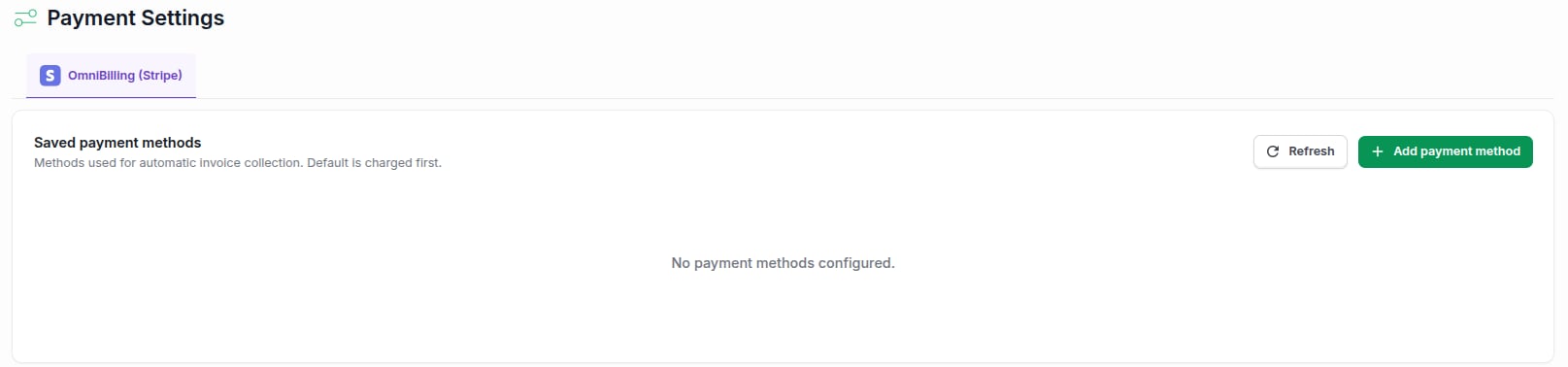
1. In the sidebar, open **Account Management** > **Payment Settings**.
2. Select **Add payment method**.
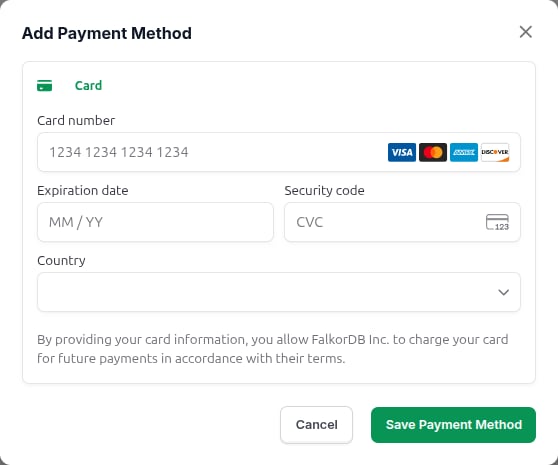
3. Enter your card details and country.
4. Select **Save Payment Method**.
 Payments are processed by Stripe. FalkorDB Cloud doesn't store your card details.
If you see a **Configure** button instead of **Add payment method**, select it. It opens the Stripe billing portal, where you add and manage payment methods.
## Change the default payment method
The default method is charged first for each invoice.
1. Open **Account Management** > **Payment Settings**.
2. Next to the method you want, select **Set default**.
To remove a method, select its remove action and type `remove` to confirm.
## Review your balance and invoices
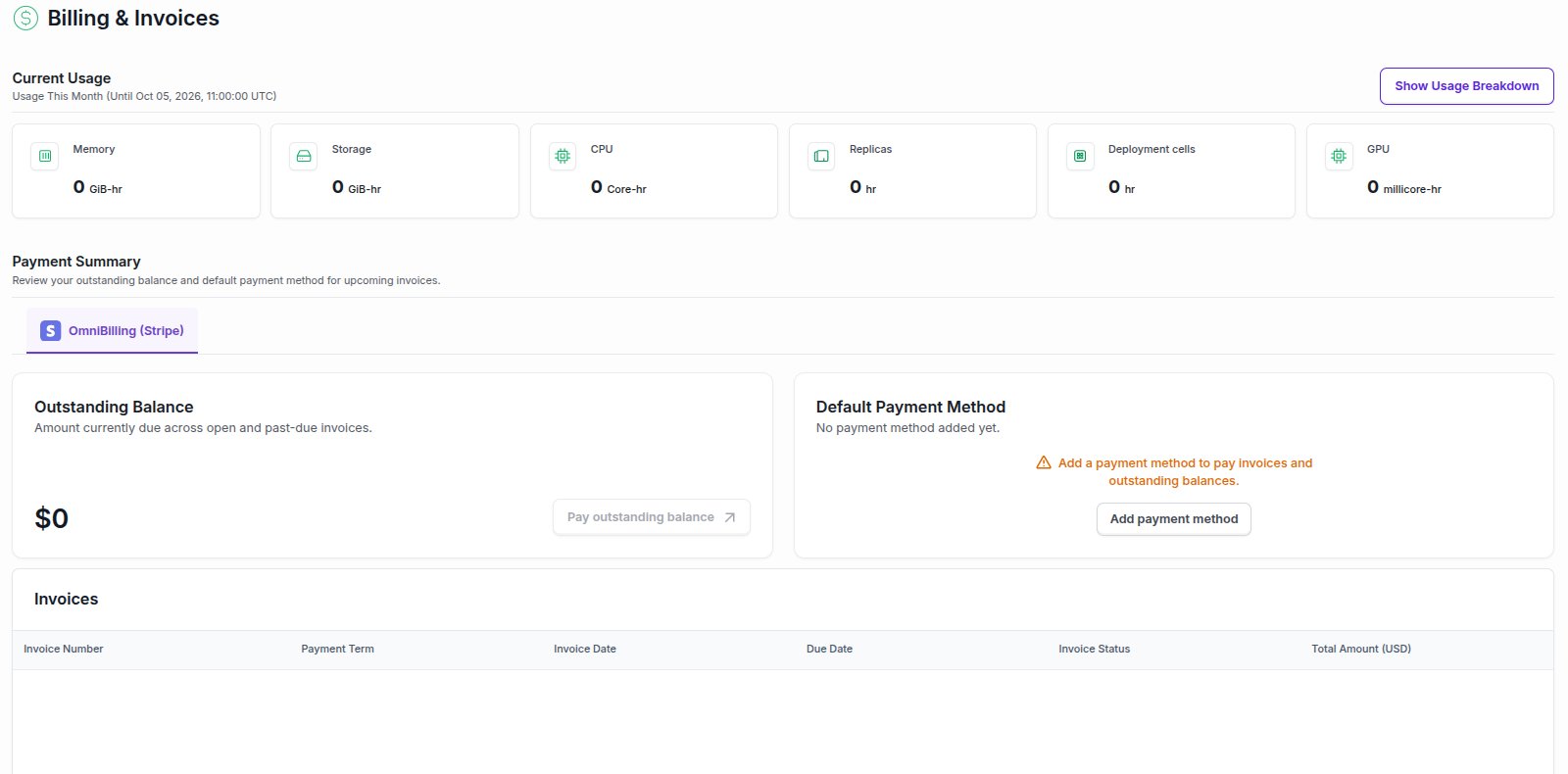
Open **Account Management** > **Billing** to see the **Billing & Invoices** page:
* **Current Usage** shows what you've used so far this month: memory, storage, CPU, replicas, and more. Select **Show Usage Breakdown** for the details.
* **Payment Summary** shows your **Outstanding Balance** and your **Default Payment Method**. Select **Pay outstanding balance** to pay it now, or **Add payment method** if you don't have one yet.
* **Invoices** lists past invoices with their status, dates, and total amount.
Payments are processed by Stripe. FalkorDB Cloud doesn't store your card details.
If you see a **Configure** button instead of **Add payment method**, select it. It opens the Stripe billing portal, where you add and manage payment methods.
## Change the default payment method
The default method is charged first for each invoice.
1. Open **Account Management** > **Payment Settings**.
2. Next to the method you want, select **Set default**.
To remove a method, select its remove action and type `remove` to confirm.
## Review your balance and invoices
Open **Account Management** > **Billing** to see the **Billing & Invoices** page:
* **Current Usage** shows what you've used so far this month: memory, storage, CPU, replicas, and more. Select **Show Usage Breakdown** for the details.
* **Payment Summary** shows your **Outstanding Balance** and your **Default Payment Method**. Select **Pay outstanding balance** to pay it now, or **Add payment method** if you don't have one yet.
* **Invoices** lists past invoices with their status, dates, and total amount.
 For a breakdown of costs by instance over time, open **Account Management** > **Cost Explorer**.
## Frequently asked questions
Paid tiers are billed by usage per hour. See the pricing on each tier page: [Startup](/cloud/tiers/startup), [Pro](/cloud/tiers/pro), and [Enterprise](/cloud/tiers/enterprise).
Instances on a paid subscription need a payment method to keep running. Add one from **Payment Settings** as soon as you see the banner on the **Instances** page.
These pages show only when billing applies to your account. If you're on the Free tier only, or your billing is handled by contract, contact [support@falkordb.com](mailto:support@falkordb.com).
This documentation is built and hosted on [Mintlify](https://mintlify.com), a developer documentation platform.
For a breakdown of costs by instance over time, open **Account Management** > **Cost Explorer**.
## Frequently asked questions
Paid tiers are billed by usage per hour. See the pricing on each tier page: [Startup](/cloud/tiers/startup), [Pro](/cloud/tiers/pro), and [Enterprise](/cloud/tiers/enterprise).
Instances on a paid subscription need a payment method to keep running. Add one from **Payment Settings** as soon as you see the banner on the **Instances** page.
These pages show only when billing applies to your account. If you're on the Free tier only, or your billing is handled by contract, contact [support@falkordb.com](mailto:support@falkordb.com).
This documentation is built and hosted on [Mintlify](https://mintlify.com), a developer documentation platform.