> ## Documentation Index
> Fetch the complete documentation index at: https://docs.falkordb.com/llms.txt
> Use this file to discover all available pages before exploring further.
> ## Agent Instructions
> FalkorDB is a graph database that speaks the Redis protocol. Queries are issued as OpenCypher through the GRAPH.QUERY and GRAPH.RO_QUERY commands, not over Bolt or a SQL connection.
> FalkorDB implements a subset of OpenCypher with proprietary extensions. Do not assume Neo4j-only syntax or procedures are available — check /cypher/cypher-support and /cypher/known-limitations before using a clause.
> FalkorDB is the successor to RedisGraph, but they are separate products. Do not present RedisGraph commands, versions, or limitations as current FalkorDB behavior.
> Use the official clients listed in /getting-started/clients rather than generic Redis or Neo4j drivers, and prefer the language the user is already working in.
> Configuration parameters are set with GRAPH.CONFIG SET or at startup; cite the exact parameter name from /getting-started/configuration rather than inventing one.
> This site covers four products: FalkorDB (core), FalkorDB Cloud, FalkorDB Enterprise, and the GraphRAG SDK. Name which one an answer applies to, since setup and operations differ.
# Upload Data
> Use the Upload Data dialog to import CSV or Cypher batch files into the active graph.
The Upload Data dialog imports data into the currently selected graph using either Load CSV or Cypher batch mode.
## Load CSV flow
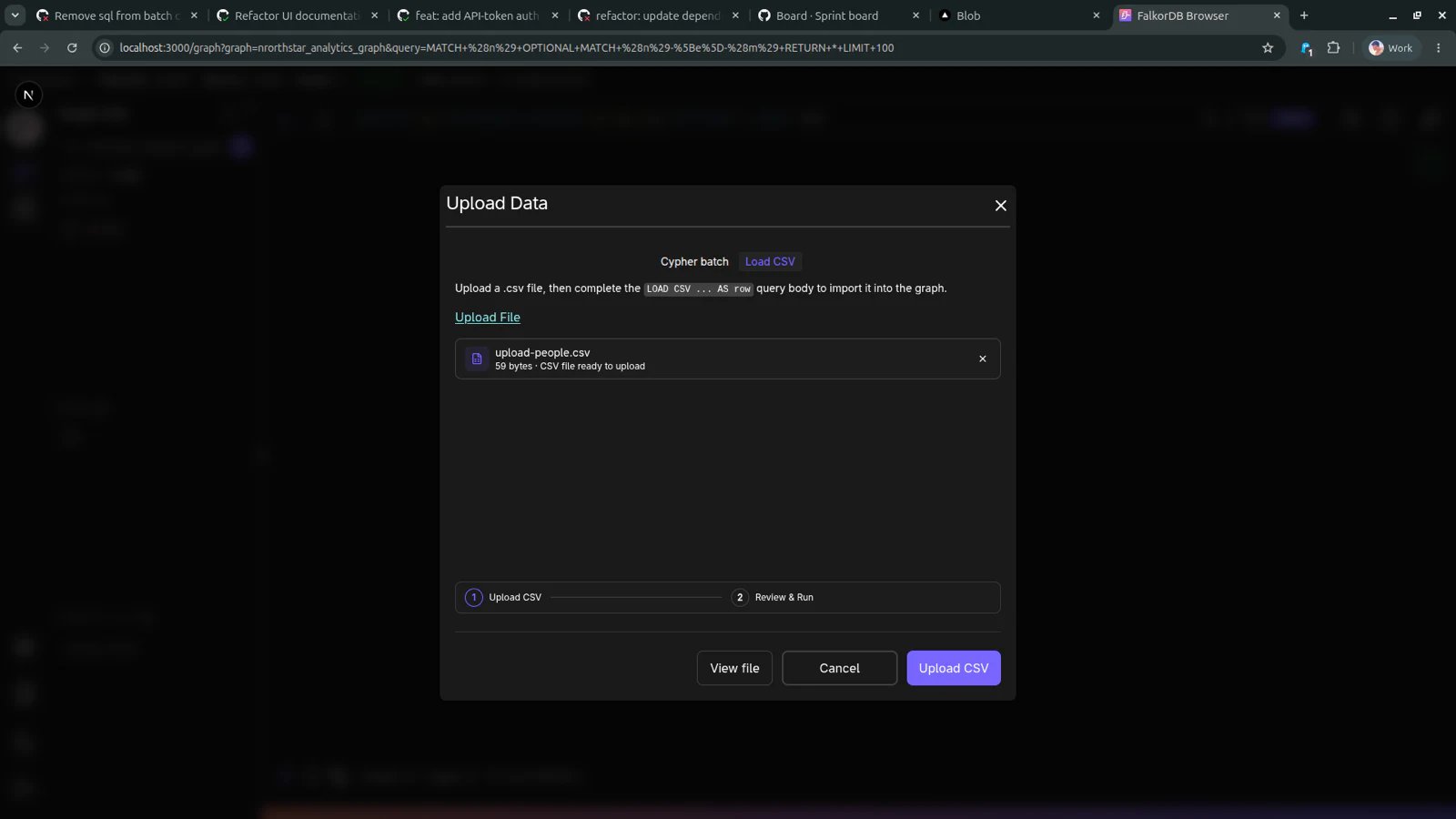
### Step 1: Upload the CSV file
Choose **Load CSV**, then select your CSV file.
 ### Step 2: Review and run
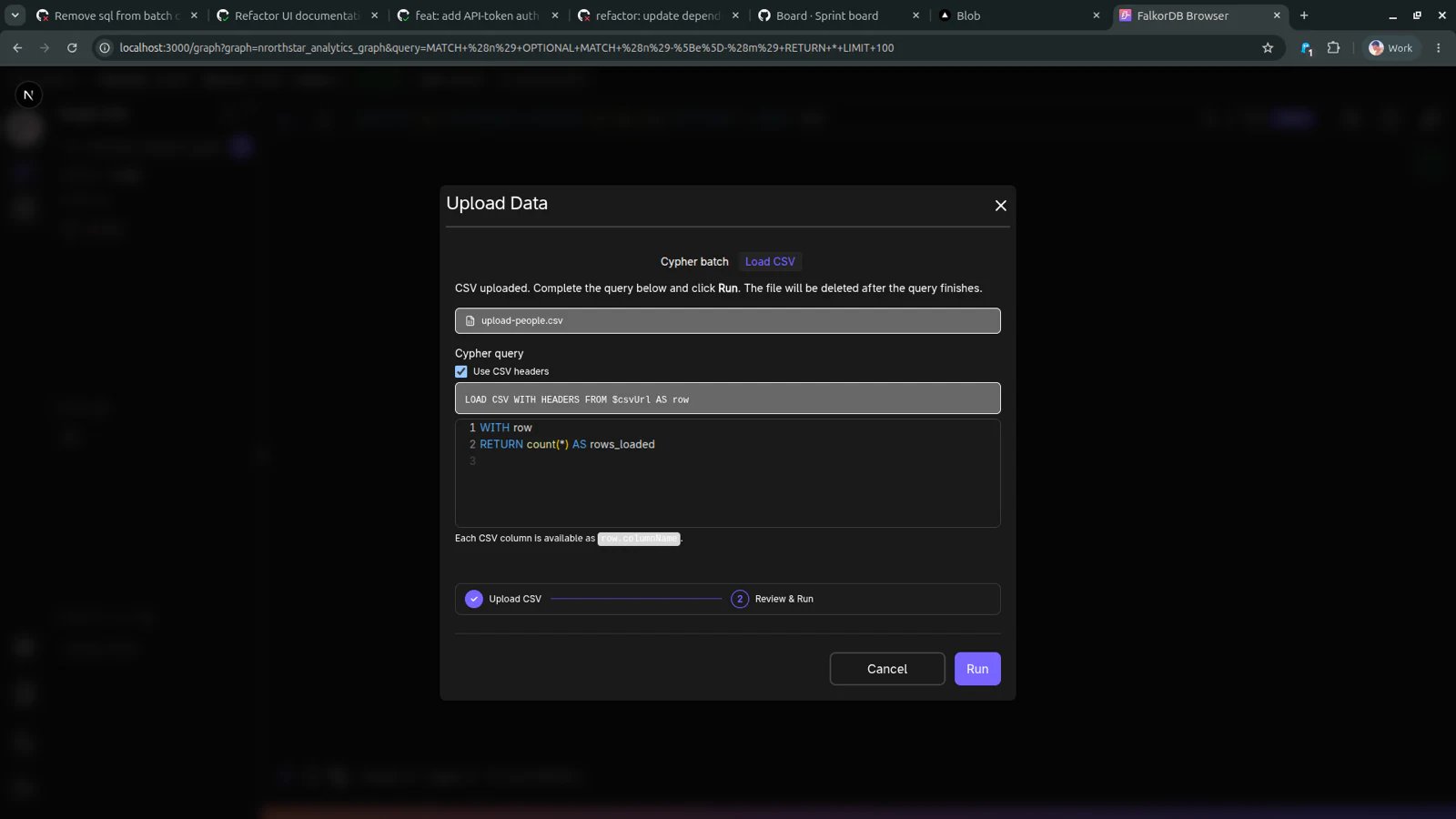
After upload, review the generated `LOAD CSV` query, adjust it if needed, then click **RUN**.
### Step 2: Review and run
After upload, review the generated `LOAD CSV` query, adjust it if needed, then click **RUN**.
 Notes:
* **Use CSV headers** can be toggled to map columns by header name.
* Each CSV column is available as `row.columnName` in the query body.
* The uploaded CSV file is temporary and removed after query execution finishes.
## Cypher batch flow
Switch to **Cypher batch** to upload a `.cypher` or `.txt` file containing one or more statements.
Notes:
* **Use CSV headers** can be toggled to map columns by header name.
* Each CSV column is available as `row.columnName` in the query body.
* The uploaded CSV file is temporary and removed after query execution finishes.
## Cypher batch flow
Switch to **Cypher batch** to upload a `.cypher` or `.txt` file containing one or more statements.
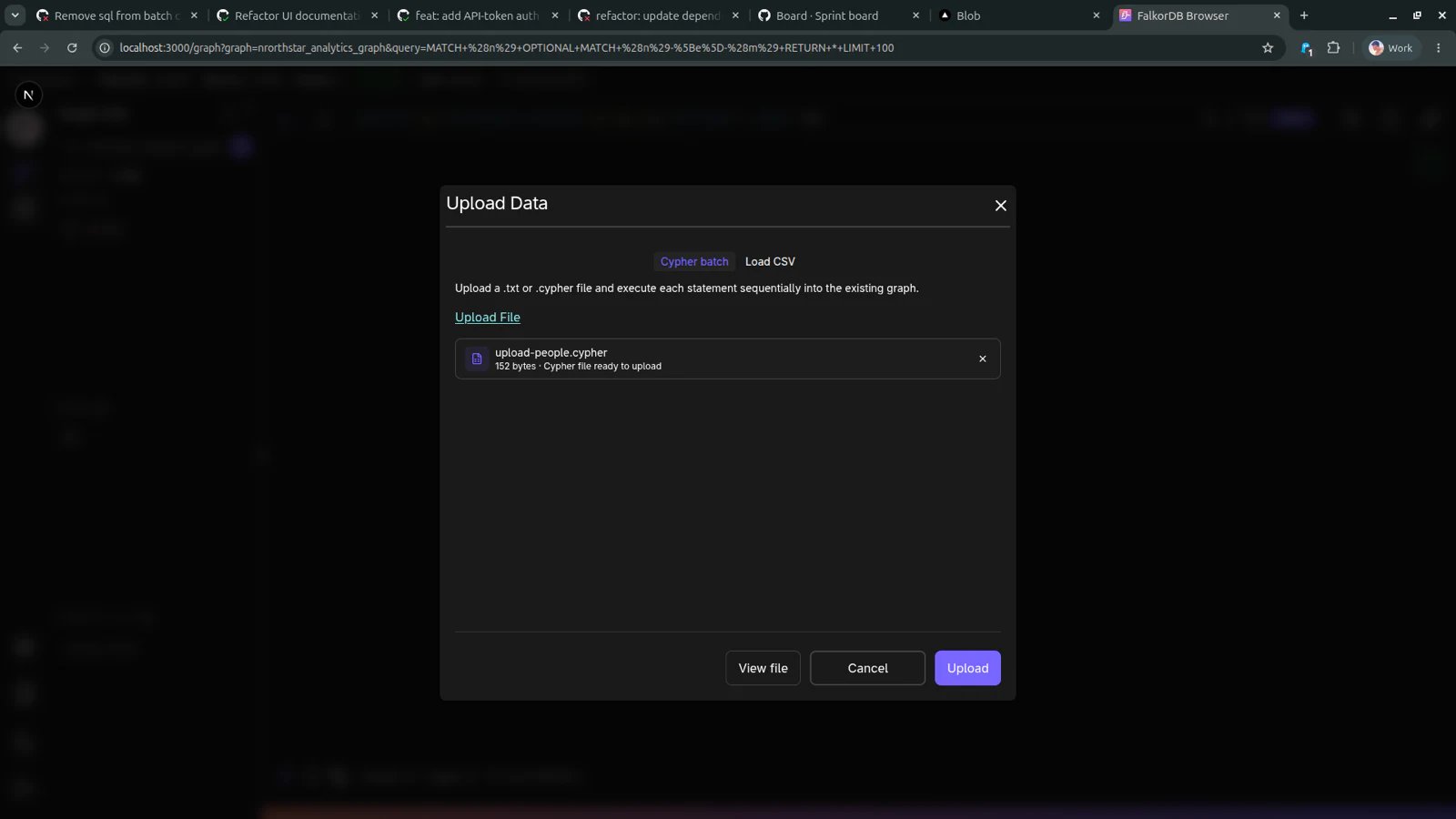 When you click **Upload**, statements execute sequentially in the active graph.
## When to use each mode
* **Load CSV**: Use this for tabular source data where you need explicit row-to-graph mapping logic.
* **Cypher batch**: Use this when you already have graph mutations prepared as Cypher statements.
## Frequently Asked Questions
Use `.csv` with Load CSV, or `.cypher` / `.txt` with Cypher batch.
Yes. The import runs against the currently selected graph in the Graph page.
Yes. After uploading a CSV, review and edit the query in step 2 before clicking Run.
Load CSV uploads tabular data and builds a query around `LOAD CSV`. Cypher batch executes statements from an uploaded script file sequentially.
When you click **Upload**, statements execute sequentially in the active graph.
## When to use each mode
* **Load CSV**: Use this for tabular source data where you need explicit row-to-graph mapping logic.
* **Cypher batch**: Use this when you already have graph mutations prepared as Cypher statements.
## Frequently Asked Questions
Use `.csv` with Load CSV, or `.cypher` / `.txt` with Cypher batch.
Yes. The import runs against the currently selected graph in the Graph page.
Yes. After uploading a CSV, review and edit the query in step 2 before clicking Run.
Load CSV uploads tabular data and builds a query around `LOAD CSV`. Cypher batch executes statements from an uploaded script file sequentially.