> ## Documentation Index
> Fetch the complete documentation index at: https://docs.falkordb.com/llms.txt
> Use this file to discover all available pages before exploring further.
> ## Agent Instructions
> FalkorDB is a graph database that speaks the Redis protocol. Queries are issued as OpenCypher through the GRAPH.QUERY and GRAPH.RO_QUERY commands, not over Bolt or a SQL connection.
> FalkorDB implements a subset of OpenCypher with proprietary extensions. Do not assume Neo4j-only syntax or procedures are available — check /cypher/cypher-support and /cypher/known-limitations before using a clause.
> FalkorDB is the successor to RedisGraph, but they are separate products. Do not present RedisGraph commands, versions, or limitations as current FalkorDB behavior.
> Use the official clients listed in /getting-started/clients rather than generic Redis or Neo4j drivers, and prefer the language the user is already working in.
> Configuration parameters are set with GRAPH.CONFIG SET or at startup; cite the exact parameter name from /getting-started/configuration rather than inventing one.
> This site covers four products: FalkorDB (core), FalkorDB Cloud, FalkorDB Enterprise, and the GraphRAG SDK. Name which one an answer applies to, since setup and operations differ.
# Table View
> Tabular query results view, search/expand behaviors, and CSV export.
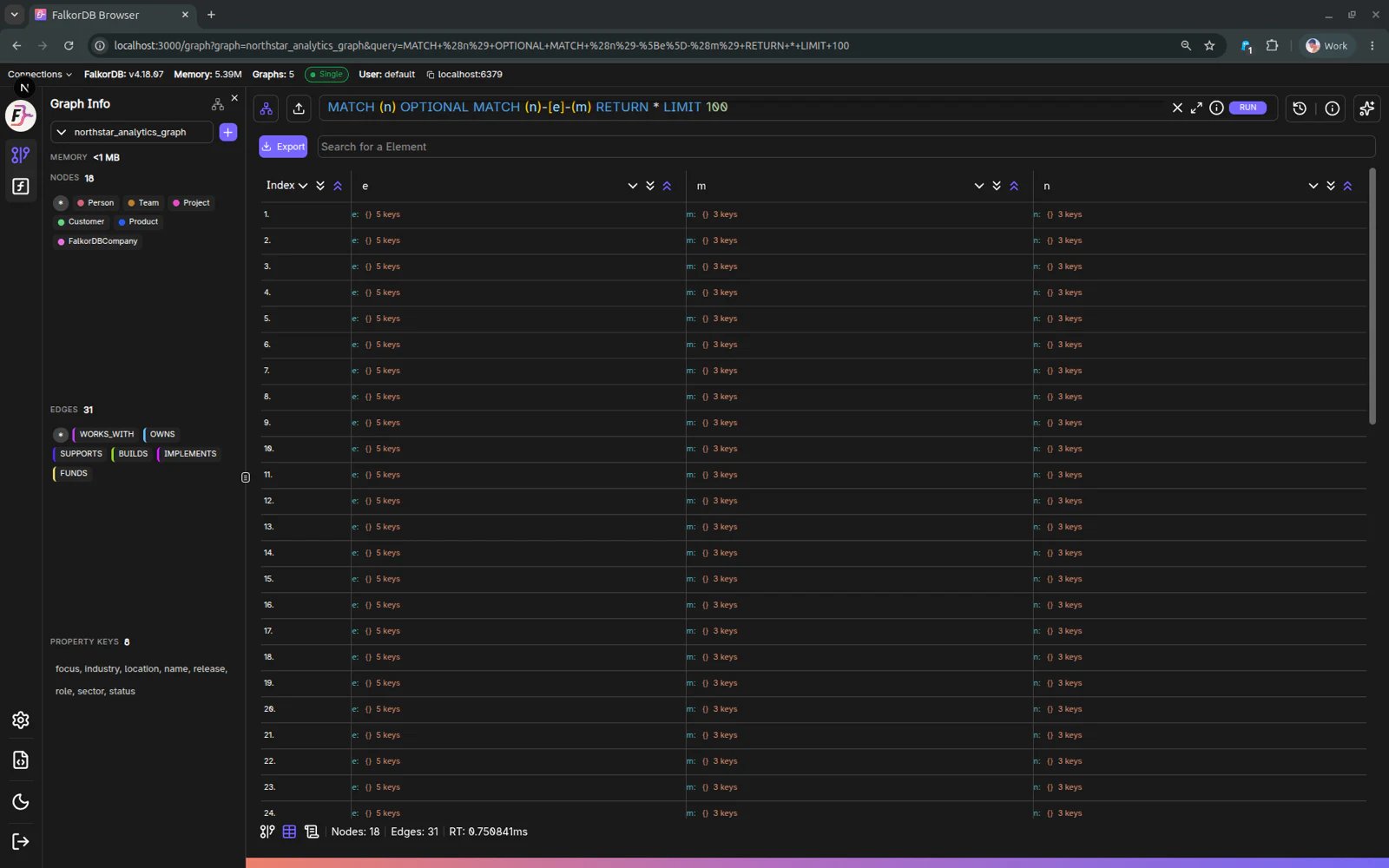
The Table tab displays query results as rows/columns when the query returns tabular data.
 ## When it appears
The **Table** tab is enabled when the current query produced `graph.Data` (i.e., non-empty tabular results).
## Features
* Automatic header extraction (union of keys across returned rows).
* Table UI capabilities provided by the shared Table component:
* Search
* Expand/collapse nested values (when applicable)
* Scroll position persistence within the session
## Export to CSV
Click **Export** to download the current table results as a CSV file.
Notes:
* Complex values (objects) are serialized as JSON.
* The output filename includes the graph ID (e.g., `_table_export.csv`).
## Frequently Asked Questions
The Table tab is enabled when your query returns **tabular data** (non-empty `graph.Data` results). If the query only returns graph elements without tabular output, the tab may be disabled.
Click the **Export** button in the Table view to download the current results as a CSV file. The filename includes the graph ID (e.g., `mygraph_table_export.csv`).
Complex values such as objects are **serialized as JSON** in both the table display and the CSV export.
Yes. The Table view includes a **search** feature that lets you filter through the displayed rows.
## When it appears
The **Table** tab is enabled when the current query produced `graph.Data` (i.e., non-empty tabular results).
## Features
* Automatic header extraction (union of keys across returned rows).
* Table UI capabilities provided by the shared Table component:
* Search
* Expand/collapse nested values (when applicable)
* Scroll position persistence within the session
## Export to CSV
Click **Export** to download the current table results as a CSV file.
Notes:
* Complex values (objects) are serialized as JSON.
* The output filename includes the graph ID (e.g., `_table_export.csv`).
## Frequently Asked Questions
The Table tab is enabled when your query returns **tabular data** (non-empty `graph.Data` results). If the query only returns graph elements without tabular output, the tab may be disabled.
Click the **Export** button in the Table view to download the current results as a CSV file. The filename includes the graph ID (e.g., `mygraph_table_export.csv`).
Complex values such as objects are **serialized as JSON** in both the table display and the CSV export.
Yes. The Table view includes a **search** feature that lets you filter through the displayed rows.