> ## Documentation Index
> Fetch the complete documentation index at: https://docs.falkordb.com/llms.txt
> Use this file to discover all available pages before exploring further.
> ## Agent Instructions
> FalkorDB is a graph database that speaks the Redis protocol. Queries are issued as OpenCypher through the GRAPH.QUERY and GRAPH.RO_QUERY commands, not over Bolt or a SQL connection.
> FalkorDB implements a subset of OpenCypher with proprietary extensions. Do not assume Neo4j-only syntax or procedures are available — check /cypher/cypher-support and /cypher/known-limitations before using a clause.
> FalkorDB is the successor to RedisGraph, but they are separate products. Do not present RedisGraph commands, versions, or limitations as current FalkorDB behavior.
> Use the official clients listed in /getting-started/clients rather than generic Redis or Neo4j drivers, and prefer the language the user is already working in.
> Configuration parameters are set with GRAPH.CONFIG SET or at startup; cite the exact parameter name from /getting-started/configuration rather than inventing one.
> This site covers four products: FalkorDB (core), FalkorDB Cloud, FalkorDB Enterprise, and the GraphRAG SDK. Name which one an answer applies to, since setup and operations differ.
# Login Screen
> How to connect FalkorDB Browser to a FalkorDB server (manual fields, URL mode, TLS/CA).
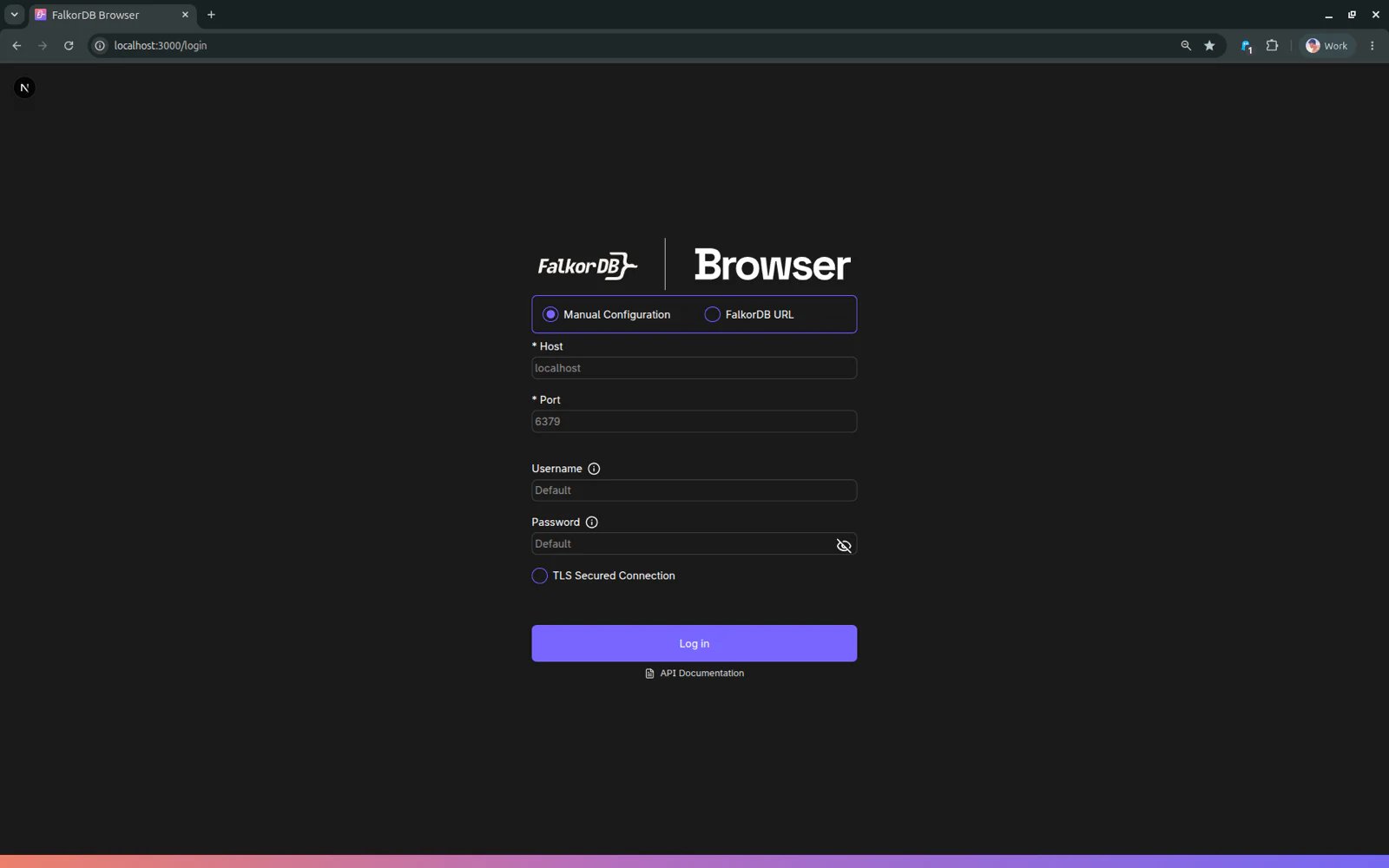
The login screen configures the connection to a FalkorDB server and authenticates the user.
 ## Login modes
The UI supports two ways to provide connection details:
### 1) Manual configuration
Use this when you want to explicitly set fields:
* **Host** (default placeholder: `localhost`)
* **Port** (default placeholder: `6379`)
* **Username** (optional)
* **Password** (optional)
* **TLS** toggle
* **CA certificate** upload (optional; used when TLS is enabled)
Notes:
* When using a local FalkorDB instance with default credentials, username/password can typically be left blank (the UI hints this).
* Disabling TLS clears the uploaded certificate.
### 2) FalkorDB URL
Use this when you already have a single URL to connect with.
Expected format:
* `falkor[s]://[[username][:password]@][host][:port][/db-number]`
* The UI also supports `redis://` and `rediss://`.
Examples:
* `falkor://Default:Default@localhost:6379`
* `falkors://user:pass@my-host:6379`
If the URL format is invalid, the form shows a validation error before attempting login.
## What happens on successful login
On success, the browser navigates to the **Graphs** workspace (`/graph`).
## Troubleshooting
* If login fails, you’ll see an “Invalid credentials” error.
* If you enabled TLS, make sure the server actually supports TLS and (if needed) upload the correct CA.
## Frequently Asked Questions
You can use `falkor://`, `falkors://`, `redis://`, or `rediss://` URLs. The format is `falkor[s]://[[username][:password]@][host][:port][/db-number]`.
No. When using a local FalkorDB instance with default credentials, username and password can typically be left blank.
The connection will fail. Make sure your FalkorDB server actually supports TLS and upload the correct **CA certificate** if required.
The default port is **6379**. The login form uses this as a placeholder value.
## Login modes
The UI supports two ways to provide connection details:
### 1) Manual configuration
Use this when you want to explicitly set fields:
* **Host** (default placeholder: `localhost`)
* **Port** (default placeholder: `6379`)
* **Username** (optional)
* **Password** (optional)
* **TLS** toggle
* **CA certificate** upload (optional; used when TLS is enabled)
Notes:
* When using a local FalkorDB instance with default credentials, username/password can typically be left blank (the UI hints this).
* Disabling TLS clears the uploaded certificate.
### 2) FalkorDB URL
Use this when you already have a single URL to connect with.
Expected format:
* `falkor[s]://[[username][:password]@][host][:port][/db-number]`
* The UI also supports `redis://` and `rediss://`.
Examples:
* `falkor://Default:Default@localhost:6379`
* `falkors://user:pass@my-host:6379`
If the URL format is invalid, the form shows a validation error before attempting login.
## What happens on successful login
On success, the browser navigates to the **Graphs** workspace (`/graph`).
## Troubleshooting
* If login fails, you’ll see an “Invalid credentials” error.
* If you enabled TLS, make sure the server actually supports TLS and (if needed) upload the correct CA.
## Frequently Asked Questions
You can use `falkor://`, `falkors://`, `redis://`, or `rediss://` URLs. The format is `falkor[s]://[[username][:password]@][host][:port][/db-number]`.
No. When using a local FalkorDB instance with default credentials, username and password can typically be left blank.
The connection will fail. Make sure your FalkorDB server actually supports TLS and upload the correct **CA certificate** if required.
The default port is **6379**. The login form uses this as a placeholder value.