> ## Documentation Index
> Fetch the complete documentation index at: https://docs.falkordb.com/llms.txt
> Use this file to discover all available pages before exploring further.
> ## Agent Instructions
> FalkorDB is a graph database that speaks the Redis protocol. Queries are issued as OpenCypher through the GRAPH.QUERY and GRAPH.RO_QUERY commands, not over Bolt or a SQL connection.
> FalkorDB implements a subset of OpenCypher with proprietary extensions. Do not assume Neo4j-only syntax or procedures are available — check /cypher/cypher-support and /cypher/known-limitations before using a clause.
> FalkorDB is the successor to RedisGraph, but they are separate products. Do not present RedisGraph commands, versions, or limitations as current FalkorDB behavior.
> Use the official clients listed in /getting-started/clients rather than generic Redis or Neo4j drivers, and prefer the language the user is already working in.
> Configuration parameters are set with GRAPH.CONFIG SET or at startup; cite the exact parameter name from /getting-started/configuration rather than inventing one.
> This site covers four products: FalkorDB (core), FalkorDB Cloud, FalkorDB Enterprise, and the GraphRAG SDK. Name which one an answer applies to, since setup and operations differ.
# Graph Info Panel
> Graph statistics (counts, memory), labels, edge types, property keys, and quick exploration queries.
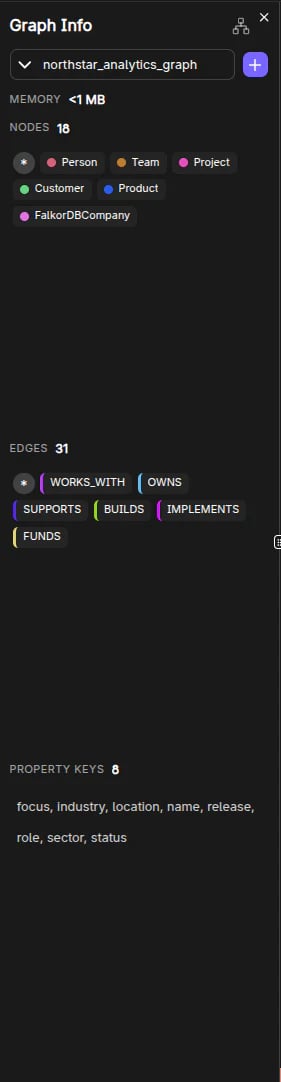
The Graph Info panel provides quick, clickable insights into the selected graph’s structure.
 ## What it shows
* **Graph name**
* **Memory usage** (optional; can be toggled via settings)
* **Node count** and **edge count**
* **Node labels**
* **Edge (relationship) types**
* **Property keys**
## Click-to-explore behavior
The panel is designed for exploration:
* Clicking a **label** runs `MATCH (n:Label) RETURN n`.
* Clicking an **edge type** runs `MATCH p=()-[:TYPE]-() RETURN p`.
* Clicking a **property key** runs a query that finds nodes/edges where that key exists.
It also provides “\*” shortcuts:
* **All nodes** (`MATCH (n) RETURN n`)
* **All edges** (`MATCH p=()-[]-() RETURN p`)
## Style customization entrypoint
Next to each label, a palette button opens the **Style Settings** panel for that label.
## Frequently Asked Questions
Click a **label name** in the Graph Info panel. This automatically runs `MATCH (n:Label) RETURN n` and displays the results on the canvas.
Yes. Click an **edge type** in the Graph Info panel to run `MATCH p=()-[:TYPE]-() RETURN p` and visualize all relationships of that type.
It shows the current **memory utilization** of the selected graph in MB. This can be toggled on/off in Browser Settings.
Click the **palette icon** next to a label in the Graph Info panel to open the Style Settings panel where you can change color and size.
## What it shows
* **Graph name**
* **Memory usage** (optional; can be toggled via settings)
* **Node count** and **edge count**
* **Node labels**
* **Edge (relationship) types**
* **Property keys**
## Click-to-explore behavior
The panel is designed for exploration:
* Clicking a **label** runs `MATCH (n:Label) RETURN n`.
* Clicking an **edge type** runs `MATCH p=()-[:TYPE]-() RETURN p`.
* Clicking a **property key** runs a query that finds nodes/edges where that key exists.
It also provides “\*” shortcuts:
* **All nodes** (`MATCH (n) RETURN n`)
* **All edges** (`MATCH p=()-[]-() RETURN p`)
## Style customization entrypoint
Next to each label, a palette button opens the **Style Settings** panel for that label.
## Frequently Asked Questions
Click a **label name** in the Graph Info panel. This automatically runs `MATCH (n:Label) RETURN n` and displays the results on the canvas.
Yes. Click an **edge type** in the Graph Info panel to run `MATCH p=()-[:TYPE]-() RETURN p` and visualize all relationships of that type.
It shows the current **memory utilization** of the selected graph in MB. This can be toggled on/off in Browser Settings.
Click the **palette icon** next to a label in the Graph Info panel to open the Style Settings panel where you can change color and size.